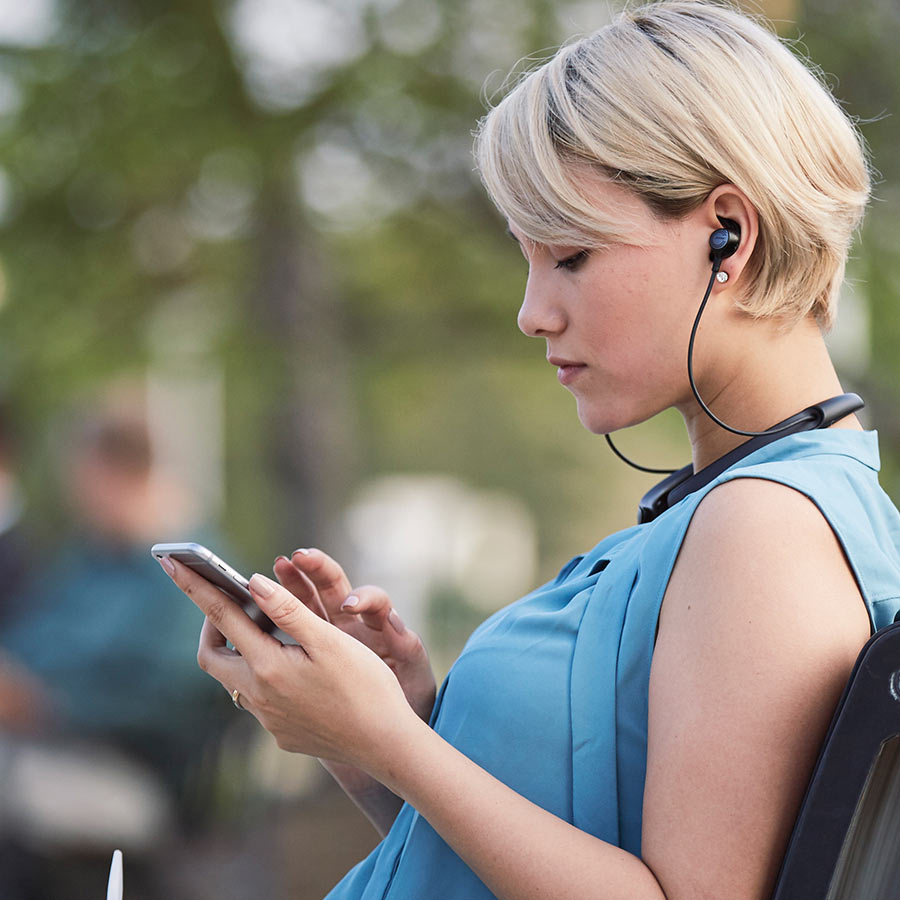
Safe listening with headphones
How to protect your hearing

As headphone listening with portable devices becomes more popular, we're seeing more reported incidents of hearing loss. Cranking up the volume to unsafe levels can lead to permanent damage. And increasingly, this damage is starting at a younger age.
We did some research and talked to an audiologist, who explained how hearing works. He also offered some practical tips to safeguard your hearing and still get the most out of your music. And if you're the parent of a teen or preteen, there are a few things you can do to help protect them from hearing loss.
How loud music leads to hearing loss
It's a well-known fact that loud music can damage our ears. Ringing in your ears after exposure to loud sounds is one indicator. And there are other, less dramatic signs that you may have damaged hearing.
If you have difficulty understanding conversations, you may have some type of hearing loss. This can be especially frustrating in situations where there's a lot of ambient noise, such as at a restaurant, family get-togethers, or your workplace. Many people subconsciously compensate with a form of lip-reading. If you have to face the person talking to understand what they say, it may be due to hearing loss.
Ground zero in your ears
The inner ear contains tiny bones that send vibrations to the cochlea. The spiral-shaped cochlea is filled with liquid. It's also packed with over 30,000 microscopic hairs. These sensitive hairs are grouped in bundles and arranged in bands.
Each band detects a different frequency. The outer bands also amplify softer sounds to the inner hair cell bands. Vibrations ripple through the liquid inside the cochlea. The hair cells wave back and forth. Nerve endings in the hairs sense the motion and translate it into what the brain "hears" as sound.
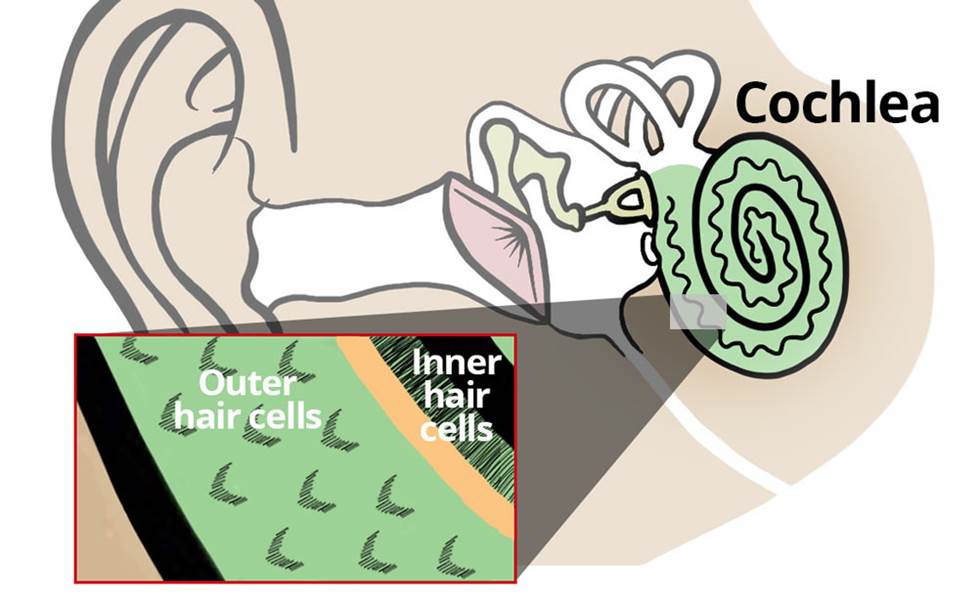
The delicate hairs of the cochlea are where hearing damage from excessively loud volume levels occurs.
It's like a piano keyboard wrapped up inside a snail shell. The highest-pitched keys start at the opening. The lower keys travel on up into the recesses of the shell. The keys near the opening are exposed to the elements, so they're the most susceptible to damage.
Hearing: a non-renewable resource
At normal volume levels, the sensitive hairs in the cochlea wave back and forth, relaying information on to the brain. Excessively loud sounds hit these hair cells like a tidal wave crashing into a coastal forest — basically, hair cells break and their nerve connections get damaged. Extended exposure makes it worse. In fact, only three hours of too-loud headphone listening can be more harmful than exposure to the sound of an explosion at close range.
What's the effect on hearing? Not only are these hair cells fragile, but they don't repair themselves. When a band of hair cells is bent or broken, the ear loses some of its ability to hear at that particular frequency. Further exposure increases this loss.
If enough outer hair cells are damaged, hearing soft sounds at any frequency becomes very difficult. In some cases, the volume required to hear anything at all may be so loud that it, in turn, causes further damage.
The good news
Hearing loss from noise exposure — known as acoustic trauma — is usually preventable. Just make a few simple changes in how you use your smartphone or portable player. You won't even have to sacrifice the enjoyment and impact of your music.
Limit sound at the source
The simplest solution is to keep the volume of your device turned down. Most smartphones let you limit maximum volume to lower levels than the defaults. Usually, this option is in the settings menu. This can also be a great help for parents to ensure their children listen at safe levels.
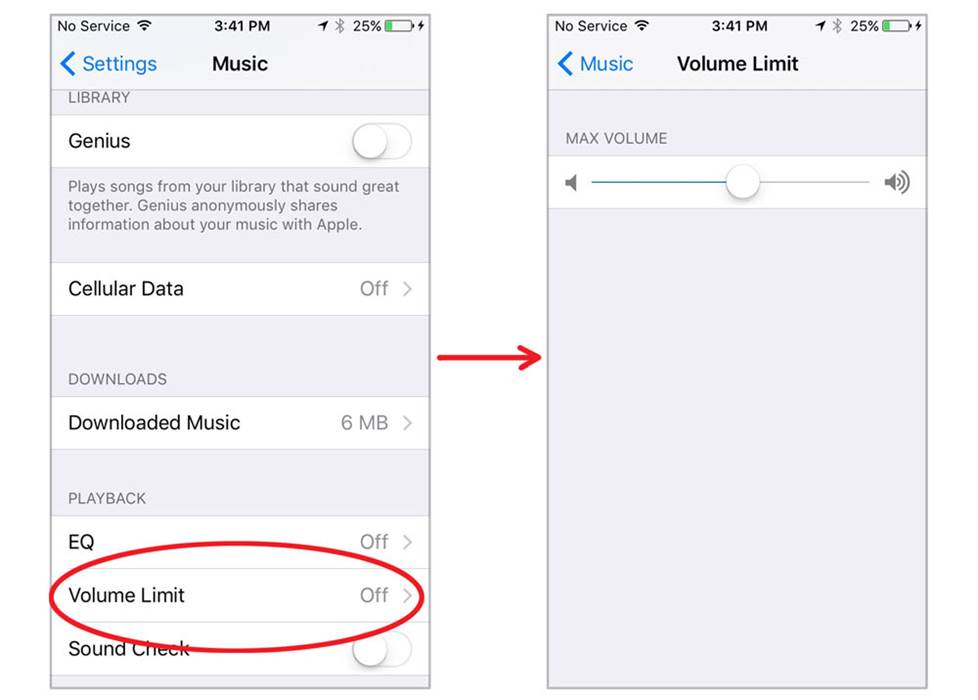
On an iPhone, you can find the volume limiter in Settings, under Music. Select Volume Limiter under EQ (left). You'll see a volume control (right) that you can adjust to reset the maximum volume.
A good rule of thumb is to aim somewhere between one-half and two-thirds maximum volume. Remember that volume levels can vary from recording to recording. And some musical genres sound louder than others. When checking your level settings, make sure to play a few representative songs from your library.
You might be thinking,"I won't be able to hear my music clearly if I turn the volume down more", but that isn't necessarily true. Read on.
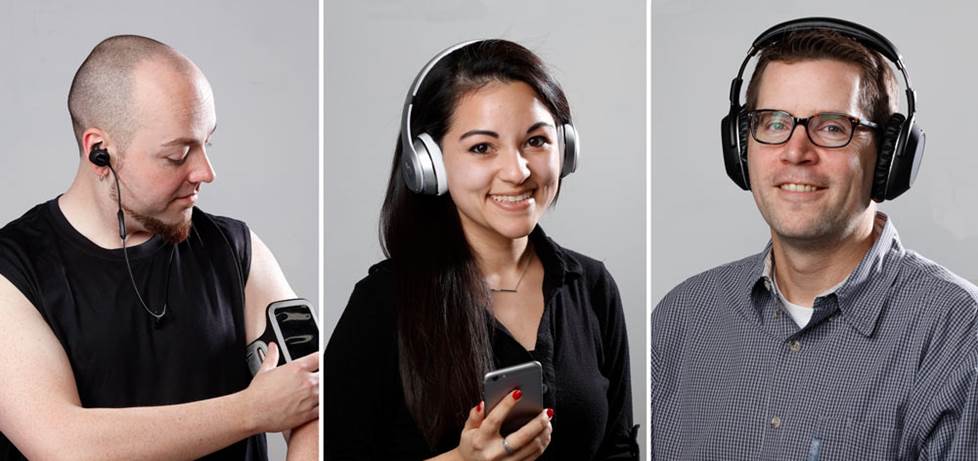
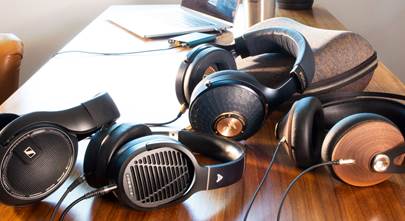
One of the best ways to enjoy high-quality listening at safe volume levels is to get the right headphones, whether in-ear, on-ear, or over-the-ear.
It all comes down to the headphones
Most earbuds included with smartphones sit outside the ear canal. Ambient sound slips in through the gap between the earbud and the ear canal. This interferes with the sound from the headphones — the sound you want to hear.
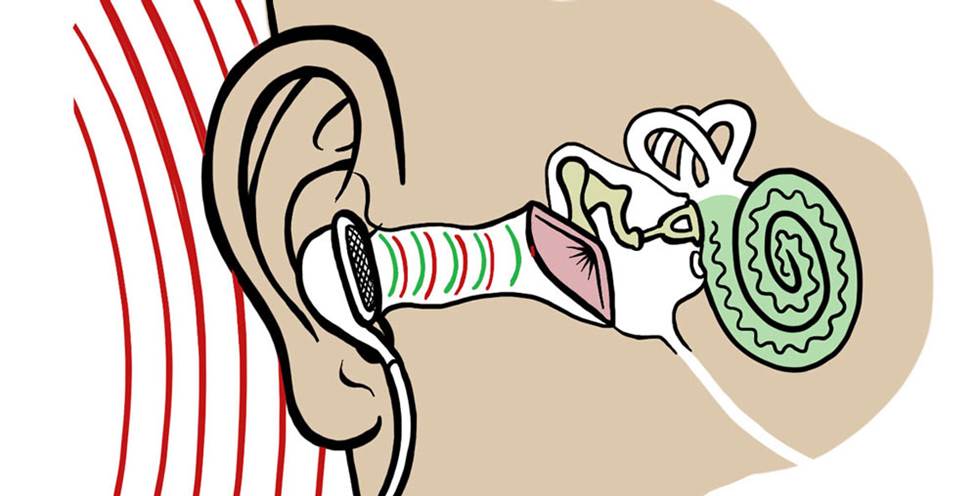
Earbud headphones let ambient noise (red) into the ear canal, where it interferes with the sound coming from the headphones (green).
The natural impulse to drown out unwanted noise is to crank up the music. This can result in dangerously high volume levels. Here are some suggestions on how to avoid that situation.
Seal the sound in with in-ear headphones
In-ear headphones come with soft ear tips in different sizes so they'll fit snugly in nearly anyone's ears. Using the right sized ear tips creates a seal that keeps out ambient sounds. So your music sounds fuller and packs more of a punch at a much lower — and safer — volume level.
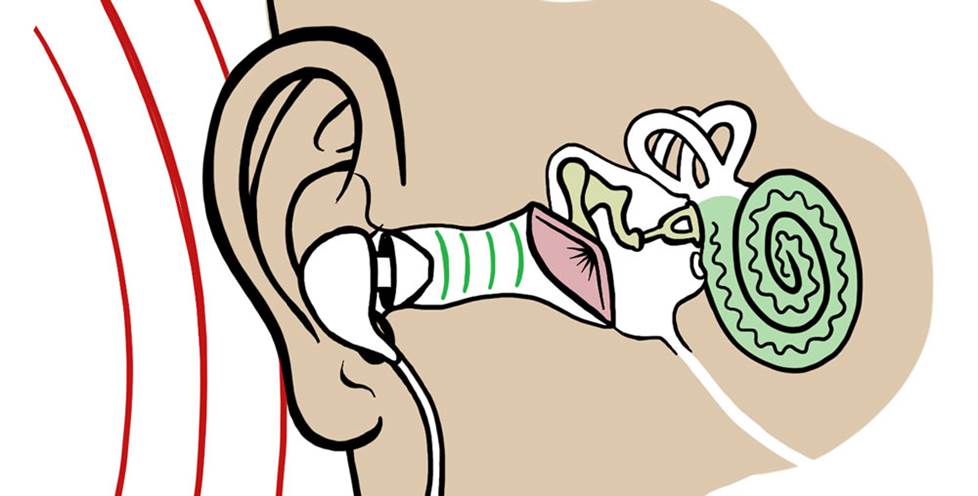
In-ear headphones act as a barrier, sealing out external noise (red). The ear tips also help keep the sound you want to hear (green) inside the ear canal, eliminating the need to turn up the volume.
Protect your ears with over-the-ear headphones
In-ear headphones are most effective for minimizing external sounds. But not everyone is comfortable with 'phones that rest inside their ear canals.
Over-the-ear headphones are a good alternative with padded earcups that completely surround the ear. These help reduce external sound so you can enjoy your music at lower volume levels.
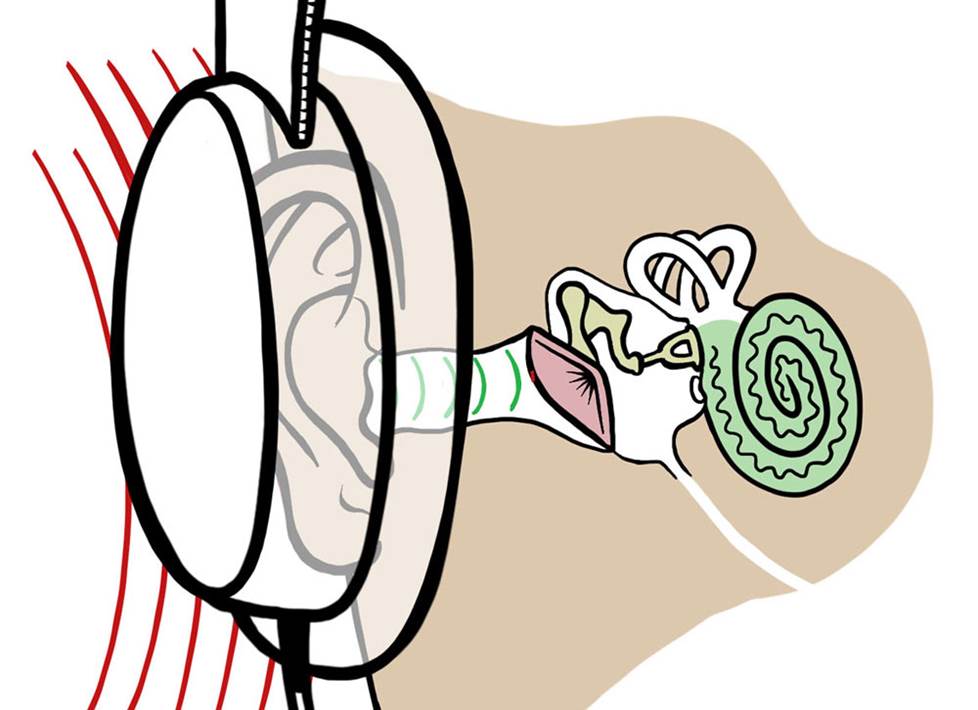
Over-the-ear headphones also help minimize external noise (red), while keeping your ear canal open.
Be aware of your surroundings
On-ear headphones rest on the outer ears without completely sealing them. Ambient sound can still enter the ears. If you work in an office or other environments that require you have some awareness of your surroundings, on-ear headphones can be ideal.
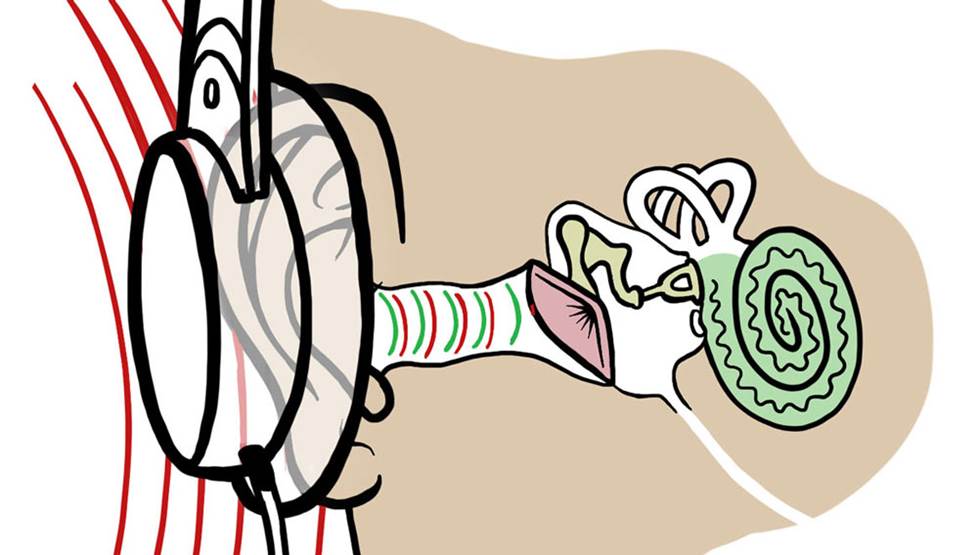
Because they don't completely cover the outer ear, air can circulate and keep your ears cool. This can make on-ear headphones more comfortable to wear for long periods.
Overcome noise without increasing volume
If you don't know a lot about headphones, cranking the volume up might seem like the only way to block external sounds. But that can also boost the volume to potentially dangerous levels. The truth is that some headphones are better at sealing out ambient sound than others.
Noise-canceling headphones use special circuitry to negate ambient sound so all you hear is your music — no matter how low the volume. They're great for air travel and use in other noisy environments. Some allow you to temporarily disable the noise-cancelation so you can hear what's going on around you without removing the headphones. And some models even let you adjust the amount of ambient sound that comes in.
Quality you can hear
Using better quality headphones can also make a difference — regardless of which type you prefer. Higher-end headphones have a wider frequency response. They can deliver more bass, crisper highs, and fuller mid-range sound at different volume levels.
That means you don't have to max out the volume to hear more detail. You'll be able to listen at safer levels and still get the full enjoyment out of your music. And with a little care, you'll be able to do so for years to come.
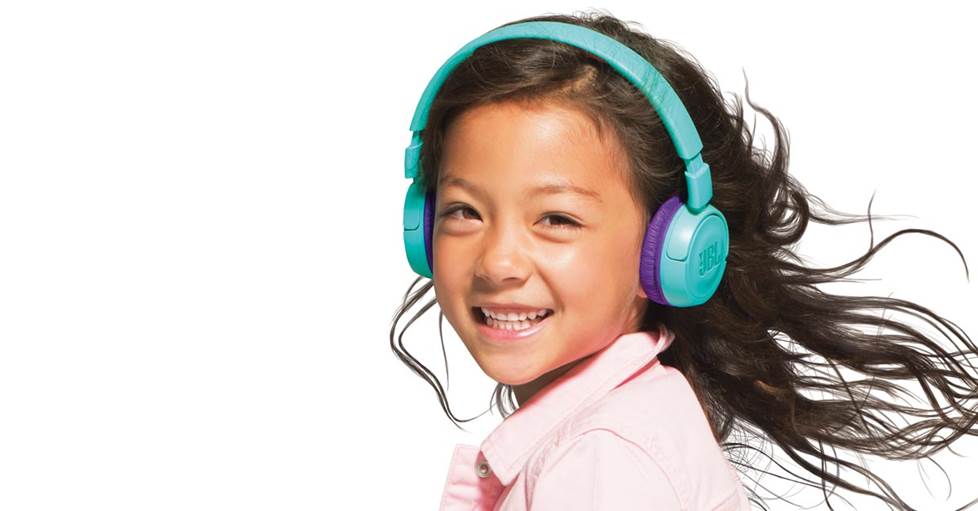
Headphones that limit volume are especially important for children.
Hearing protection for kids
Limiting the volume on your child's smartphone or other portable device is a good start. Some manufacturers make special headphones designed just for kids. These have built-in volume limiters. And since they're made to fit the smaller ears of children and preteens, they're more effective at blocking external noise."
Questions?
If you have questions about finding the right headphones for your needs, just ask! We're ready to provide one-on-one help. Give our expert advisors a call at 1-888-955-6000.
Special thanks to Audiology Associates of Harrisonburg, Virginia for providing technical information for this article.




Kris Young from Shiloh
Posted on 2/27/2023
Extremely helpful! Educational as well. Thank you.
Arnold Y Chong from Iowa City
Posted on 10/14/2021
Immense help for people who are looking for good quality headphones. !!!
Lee Himelfarb from Delray Beach
Posted on 2/8/2020
The concept of percentages discussed above are not a good way to identify actual levels at the ear's membrane. Until equipment comes with a standardized (X) dBs at (X) milliwatts listed on recordings, transducers, and amplifiers, we will never be able to accurately know what we are actually subjecting our hearing to. I have a more practical suggestion. Go to a physician or audiologist and request that they inform you of what is considered a safe level (example: 85db for up to 1 hour) and have them play pink-noise or a combination of test tones through their calibrated tone generator while you are listening in their anechoic chamber. You will become familiar with that level so that when you listen to any transducer (headphones, IEs, or speakers) you will become familiar with your damaging power levels.
Piper M. from Boston
Posted on 12/29/2019
I always listen to my music or show with my headphones on at 30% or lower percent volume. My uncle keeps on saying that my ears are going to die and ripping them off me even when I tell him the volume it is at. He lists many of the same points this article contains but also says that 24% is still much too loud. Should I turn the volume down more? Is this an unsuitable volume? I don't feel comfortable listening over around 40% volume but I know about the risks so I keep it much lower.
Stephen Wheatley from London
Posted on 12/13/2019
Excellent article, a clear explanation of a complex topic and growing health risk. Are you aware of the World Health Organisations Make Listening Safe campaign and their safety standards for headphones (ITU/WHO H.870)? They recommend that headphone users are provided with information about their sound dose exposure so they can manage it and automatic protection if that is what they want. This standard was adopted by Apple in December 2020 and we need to encourage other handset and headphone manufacturers to follow suit so that their customers can start to protect themselves.
JustSomeOldWornOutDude from Wilmington NC
Posted on 7/29/2019
quick question. I have hearing loss due to an prolonged issness. I have to use a small FM radio at cirtan lecture and discourses. However with standard microphone systems , and varying speakers, there is a loudness imbalance, resulting is very loud painful "booms" of volume. On the computer it is not an issue because the computer has a built in loudness equalization. My hearing aids also have loudness equalization. however the hearing aids cannot cancel out the speaker echo in the building so i am forced to use a small FM device. OK so finally, here's the questions. Are there earbuds with loudness equalization built in? or should i look for a new digital receiving device? Thanks
Kathleen Lake from Healy
Posted on 11/25/2017
Same here. I have an 87 year old mother who uses headphones to watch tv. She is frustrated with the need to constantly adjust the volume control because there is no consistency between the volume in programs and commercials. This is a need that is not being filled. I cannot find what we need anywhere. HELP!
Darrell Perko from Eugene
Posted on 9/21/2017
To pile on: I came looking for sound-leveling and volume limiting devices. Can't find anywhere....
wheedl from Atlanta
Posted on 3/27/2017
To add onto what Petersea said, there is also the problem of knowing how much volume is damaging with a particular device and headphone combination, since few of us have decibel meters. Every combination of devices and headphones I have puts out a different level of sound, so how do I know if I am damaging my ears or not?
Petersea from Sydney
Posted on 8/26/2016
Thanks for the information, but I do feel that it's really only half the story - you've advised us to limit the volume we set our playback to and to aim for best quality by maintaining nuances in our sound. But what about the bottom end? The quiet. I'm sure we all don't listen to just music these days; I listen to a lot of spoken word and watch movies - using headphones. There's a lot of dynamic range in what I hear; that's my problem, and I doubt that I'm alone. I hear loud passages - imagine a gun-shot fight, and I hear quiet passages - imagine softly-spoken words. Loud and soft can occur in the same material, not far apart, and I don't want to be reaching for the volume control each time the sound editor has optimised his product for HIS environment; mine is quite different. If I constantly have to adjust for loudness and quiet, I'll do more damage by constantly fiddling, being up when it should be down, and vice versa. I was brought here searching for 'volume leveling headphones', but there's a total absence of anything about that here. Can we have Part II?