Choosing Audio and Video Cables
Quality matters when connecting audio and video gear

So, you've just bought a home theater or stereo system. You get it home, plug it in with the included cables, and you're set, right?
Not so fast.
Using the cheap cables that came with your gear could be holding back your system's performance.
It's easy to find "experts" who claim that any cable that costs more than a few dollars is a scam. In my 35 years as an A/V professional, that has not been my experience. I've seen and heard the difference better cables can make in my systems and countless others.
In this article, we'll give you the information you need to choose the right type of connections for your components. And we'll show you why high-quality cables are worth the investment.
How will you use the cable?
Before choosing a cable, you should ask yourself three questions.
- Which type of cable is best for the task at hand?
- What length do I need?
- Do I want to conceal it behind my walls?
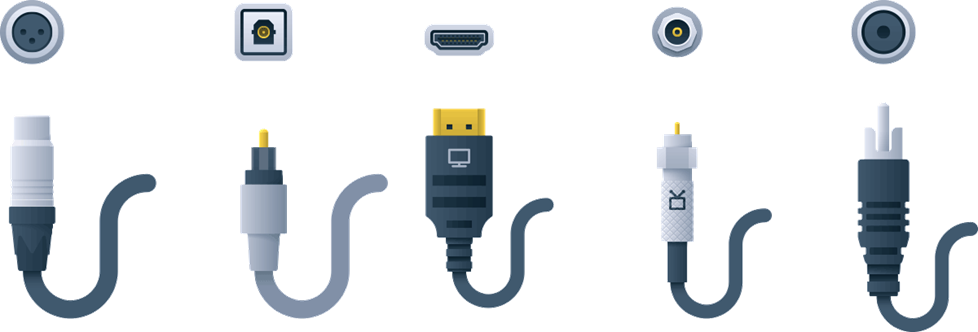
The descriptions below will help you understand what the different types of cables do and when it makes sense to use each kind.
To determine the right lengths, measure the distances between your components. Will you need to pull the components forward to reach the rear panels? If so, make sure your cables give you enough slack for that.
Make sure any wire you're putting behind a wall is safety-rated (CL2 or CL3) for that purpose. See our guide to in-wall wiring for more information.
Will you be able to see and hear a difference?
It depends. Do you have a high-quality system? Do you pay attention to sound and picture quality? If so, the improvement should be clear.
Anatomy of a cable
Before we dive into all the different types of connections, it's important to understand how a typical interconnect cable is constructed.
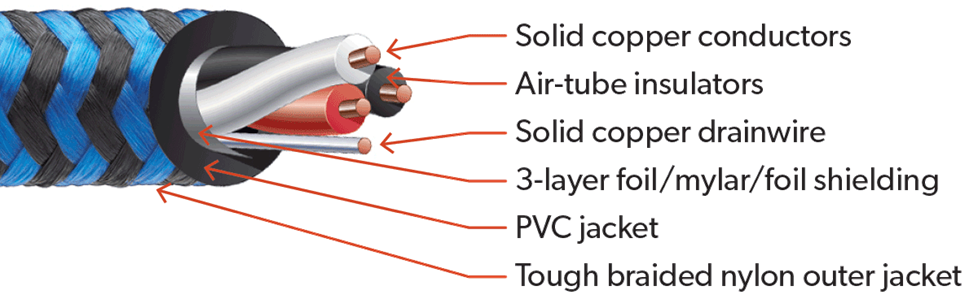
Well-made cables have a durable outer jacket and multiple layers of shielding.
There are five main parts of a cable that contribute to quality and durability:
- The outer jacket protects the inner materials of the cable from damage.
- The shielding keeps out radio frequency interference (RFI) and electromagnetic interference (EMI). Shielding also limits noise radiated from the cable.
- The dielectric is an insulating material between the conductor and the shielding material. The conductor is the part of the cable that actually carries the signal.
- Finally, the connector is the part of the cable that attaches to your gear.
Audio interconnects
Quality cables preserve the dynamic, detailed sound of the original recording. Even the finest cables can't improve or enhance an audio or video signal. In fact, for years the slogan of cable-maker AudioQuest has been, "Do no harm."
But poorly made cables can limit the frequencies you'll hear at the high and low end. Or they can obscure low-level details, resulting in sound that's unfocused and uninvolving. When shopping for better audio cables, here are some features to look for.
An oxygen-free copper (OFC) center conductor will pass signals accurately, with minimal signal loss. Some high-quality cables use copper conductors coated with silver. Silver is an even better signal conductor than copper.
Good shielding — Look for cables that include two separate shields. Braided copper guards against RFI, and foil guards against EMI.
Good connectors that provide tight contact with your components' jacks. If the cable you're considering uses metal connectors, look for gold-plating to prevent corrosion.
Digital audio interconnects
Digital connections carry stereo or multichannel audio over a single cable. They provide excellent sound quality, too. Below, we've listed the three main types of digital audio connections.
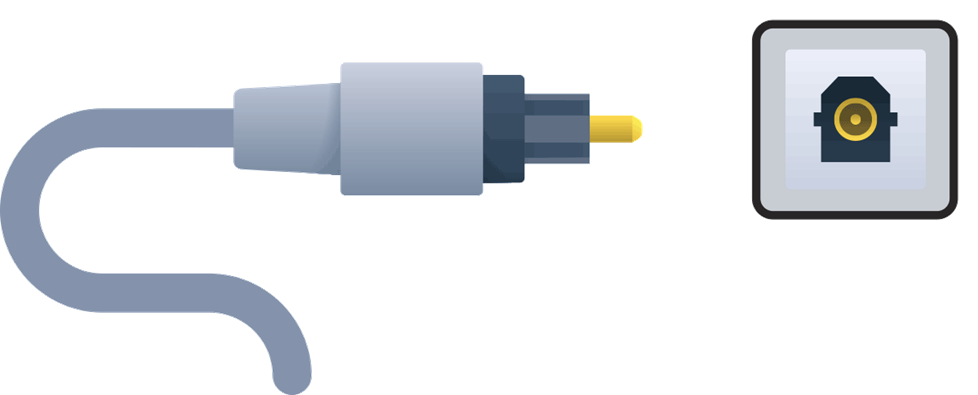
This Toslink optical cable provides a high-quality connection for stereo or surround sound. Toslink connections are common on TVs, A/V receivers, disc players, and cable/satellite boxes.
Optical (Toslink and mini-optical)
What it does: Optical cables carry signals as pulses of light rather than a stream of electrons. They are impervious to magnetic or electrical interference. They can carry surround-sound of up to 5.1 channels. But it can't carry the high-resolution audio formats found on Blu-ray discs.
When to use it: Connecting a TV to a sound bar that lacks HDMI? Optical is your best bet. For more info, read our article about sound bar connections and setup.
Does your CD player have an optical output jack? Use it to bypass the player's built-in digital-to-analog converter (DAC). If your receiver or amplifier has a better DAC, you'll get better sound with optical connection.
What to look for: A well-engineered optical cable can reduce "jitter" — subtle changes in the timing of digital signals that can harm sound quality. Higher-quality cables also usually feature sturdy connectors for added durability.
Note that there are two types of optical connections: full size Toslink, and mini-optical.
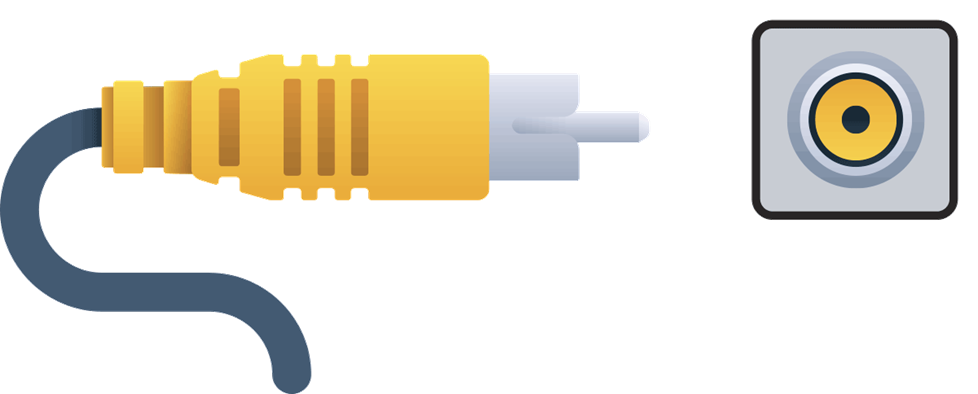
A coaxial digital cable will provide a distortion-free connection between your digital audio source component and an A/V receiver or DAC.
Coaxial
What it does: Coaxial digital cables resemble standard analog RCA cables. But don't use a standard audio interconnect to transfer a coaxial digital signal. Cables made to pass a digital signal provide the proper 75-ohm impedance. They also allow for a wider frequency bandwidth.
Like optical, coaxial connections are surround-sound-capable, delivering up to 5.1 channels of audio. Sound quality from coaxial and optical cables is roughly the same.
When to use it: These days, coaxial connections on equipment aren't as common as optical. You'll be hard-pressed to find a TV that has one. So, for the most part, that leaves audio applications like the CD player example described above.
What to look for: When you're looking at specifications, be sure the cable has 75-ohm impedance. You should also look for copper braid, rather than aluminum, since it's more conductive and can provide better noise rejection.
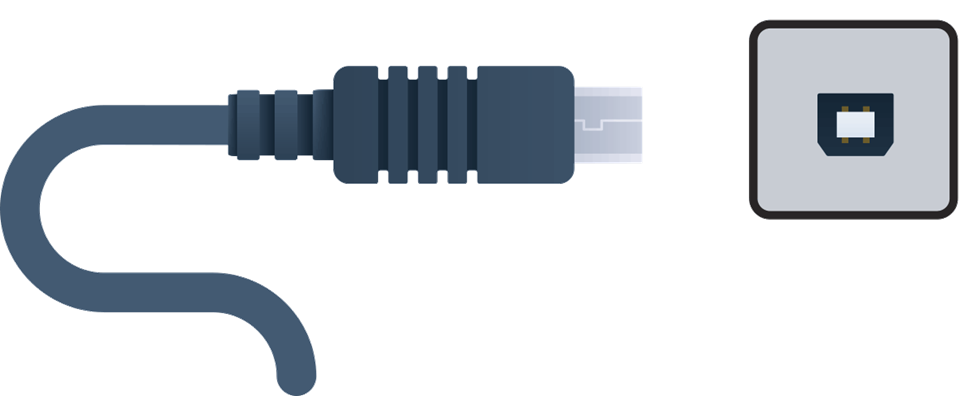
USB
What it does: A high-quality USB cable carries digital audio signals from your computer to a digital-to-analog converter, receiver, integrated amplifier. A high-quality cable can reduce the "jitter" (timing errors) that degrades the sound of digital music.
What to look for: We offer USB cables with four types of connectors: Type A, Type B, Type C, and Micro USB Type B. Some cables have one connector type on end and a different type on the other end. Make sure you know which types of USB jacks are present on the components you want to connect.
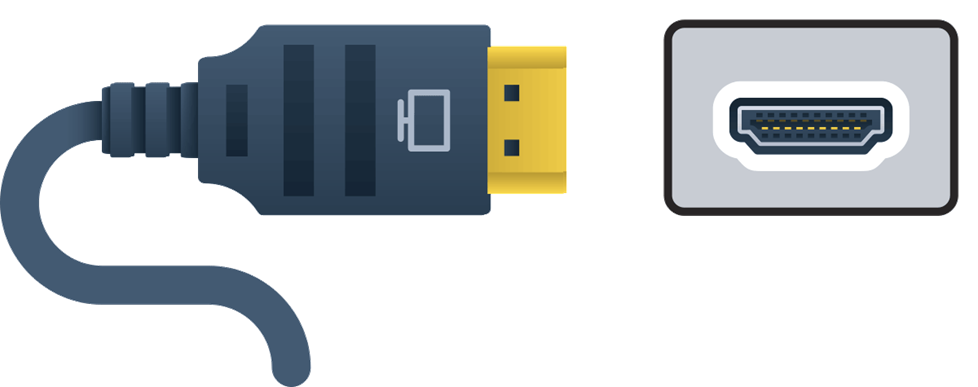
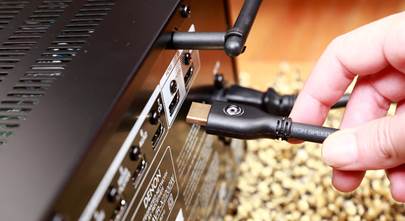
HDMI cables carry digital audio and video signals.
HDMI
What it does: HDMI (High-Definition Multimedia Interface) carries digital audio and video signals. The current HDMI 2.0 version supports up to 32 channels of audio. That includes high-resolution formats like Dolby® TrueHD, DTS HD™ Master Audio, and Dolby Atmos.
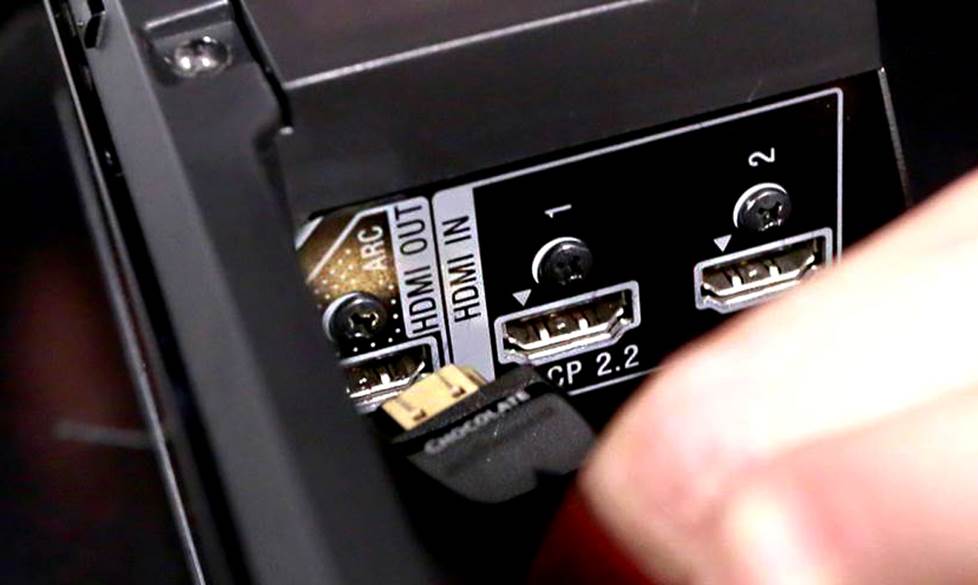
HDMI also offers flexibility via ARC (Audio Return Channel). ARC provides a "back channel" for audio from the TV's over-the-air tuner and internal web apps.
If your TV and your receiver both support ARC, you no longer have to connect a separate cable to carry the TV's audio signal to your receiver. Many sound bars now have ARC, too.
A new enhanced version of ARC, called eARC, provides much greater audio bandwidth and can handle Dolby Atmos signals.
When to use it: When hooking up a high-definition source — like a Blu-ray player, high-def cable TV box, or high-def gaming console.
What to look for: Better cables may be needed for higher-quality signals or longer runs. You can read more about choosing quality HDMI cables in the video section of this article.
Analog audio interconnects
This is the type of audio connection that most people are familiar with. Usually, you'll see the simple red and white two-channel stereo RCA connection. A few components also offer XLR and multi-channel analog connections.
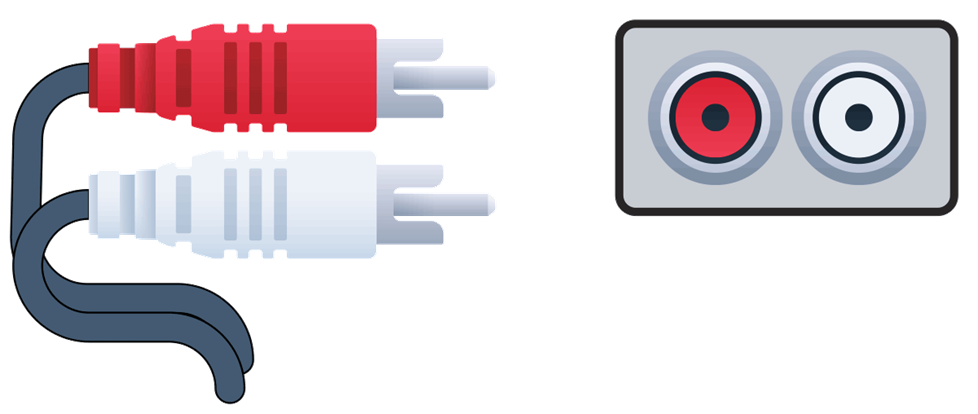
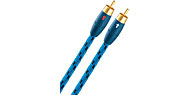
RCA interconnect cables are for analog stereo signals.
RCA (stereo)
What it does: RCA cables transfer the two channels of a stereo audio signal. The cable found in the box with audio components is generally made with low-cost materials. You'll see two unshielded cables bound together, with cheap red and white RCA plugs at each end.
When to use it: This is the most common type of cable to make a stereo audio connection. RCA cables can also be great problem solvers. For example, many receivers can only send audio to a Zone 2 setup via analog signals. For more details, see our article on how to hear TV sound in Zone 2.
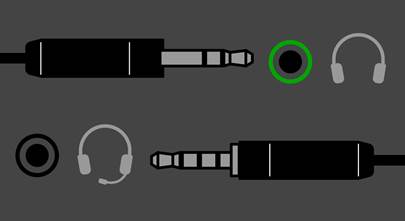
You can also find stereo mini-to-RCA cables with RCA connections on one end and a 1/8-inch plug on the other end. These are used to connect a portable audio player or computer to a receiver or amplifier.
You'll need a single-stranded RCA subwoofer cable to connect a home theater sub to your surround sound receiver.
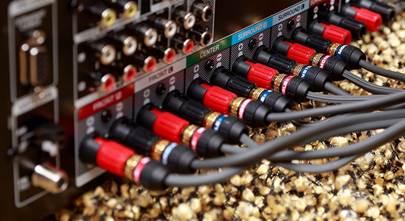
What to look for: Copper center conductors and double or triple shielding. You'll want sturdy, gold-plated RCA connectors.
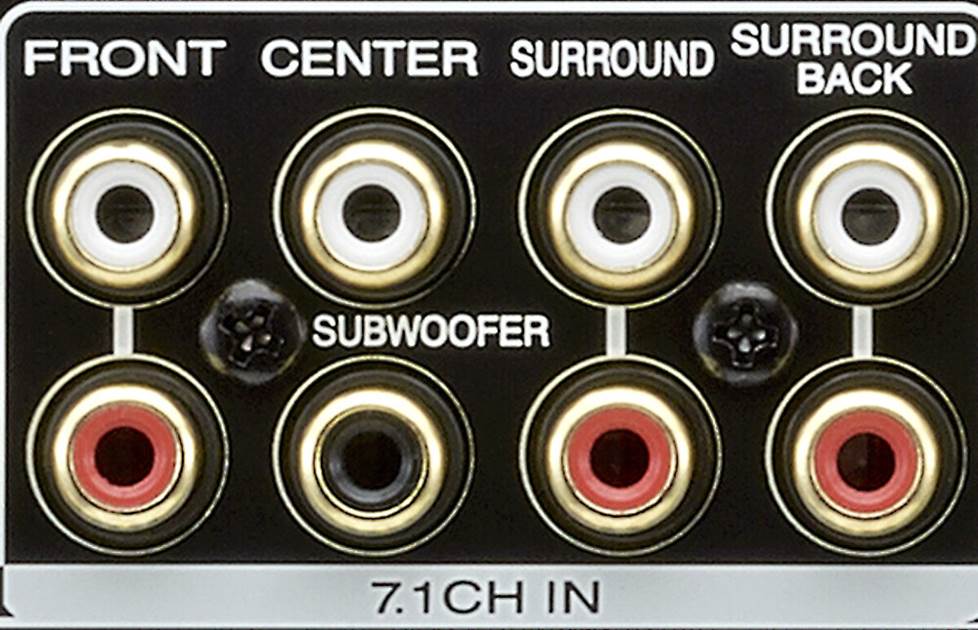
Many home theater receivers and A/V preamps include a 7.1 or other multi-channel RCA analog audio input.
RCA (multi-channel)
What it does: Multi-channel analog audio cables have six or more conductor strands. They transfer five or more full-range audio channels, plus one or two subwoofer channels. We don't carry any specialty multi-channel RCA cables, but multiple stereo pairs will work just as well.
When to use it: Do you own a high-end Blu-ray player? Part of what you paid for is its high-grade digital-to-analog converter. It's superior to the ones found in most A/V receivers. If you want your Blu-ray player to handle the D/A conversion, connect to a compatible receiver or amp via the multi-channel RCA outputs.
What to look for: Copper center conductors, double or triple shielding, and gold-plated RCA connectors.
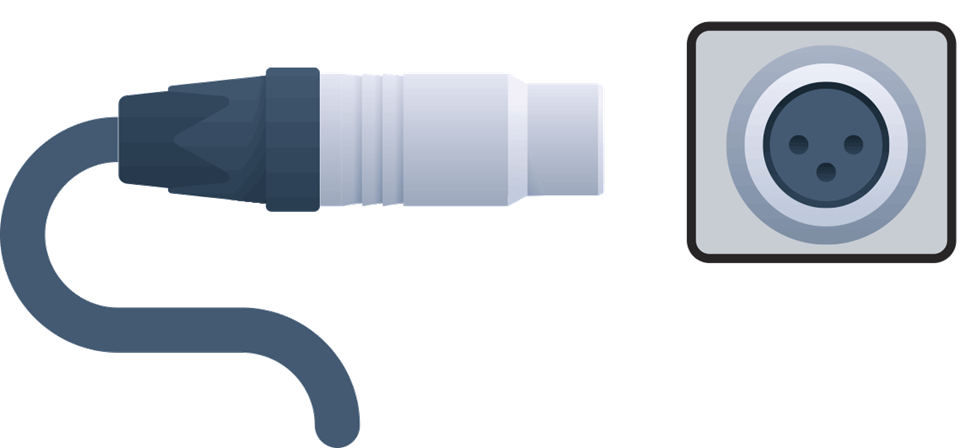
XLR connections provide balanced audio, with lower noise and greater dynamic range than unbalanced RCA connections.
XLR (stereo)
What it does: XLR's main advantage is its ability to deliver "balanced" audio. An XLR connector has three pins — one for the positive conductor, one for the negative conductor, and one for the ground wire. When an amplifier or other component receives the signals from an XLR cable, noise that is common to both the positive and negative conductors is canceled out.
When to use it: Audiophiles prefer balanced XLR over unbalanced RCA connections for high-performance home audio gear.
What to look for: Properly insulated conductors to keep the separate signals from interfering. You also want good shielding to keep outside noise from affecting the signals. Many XLR cables have connectors with locking mechanisms that ensure a secure connection.
Video interconnects
Video signals are more susceptible to degradation than audio signals. And, as with audio, RFI and EMI can taint the signal.
Digital video interconnects
Digital video connections give you the best picture quality. These days, that means HDMI.
HDMI is the only connection that supports 4K Ultra HD video from sources like a 4K Blu-ray player to a 4K TV.
HDMI
What it does: HDMI cables carry digital video signals up to 8K Ultra HD resolution. Currently, 4K resolution is the max for most content and A/V gear.
To watch 4K content, both your video source and TV (or projector) should be compatible with HDMI 2.0 and HDCP 2.2 copy protection. The latest version, HDMI 2.1, is still in the early stages of introduction. For a deep dive, check out our article about HDMI.
When to use it: Use it whenever you can. You can find it on HDTVs, home theater receivers, Blu-ray players, video game consoles, cable boxes, and computers.
What to look for: For lengths of 2 meters or less, inexpensive HDMI cables from a dependable brand should work fine. For longer runs, choose high-quality cables.
For 4K video, look for cables labeled "Premium High Speed" that support HDMI 2.0's maximum bandwidth of 18 Gbps.
For runs of 30 feet or more, and in-wall runs, consider HDMI cables that use fiber or hybrid fiber/copper conductors or cables with active circuitry.
Analog video interconnects
If you're trying to connect an older TV or component that doesn't have HDMI, then you'll have to use an analog video connection.
Analog connections like component video and composite video are becoming rare. In fact, we no longer carry those types of cables.
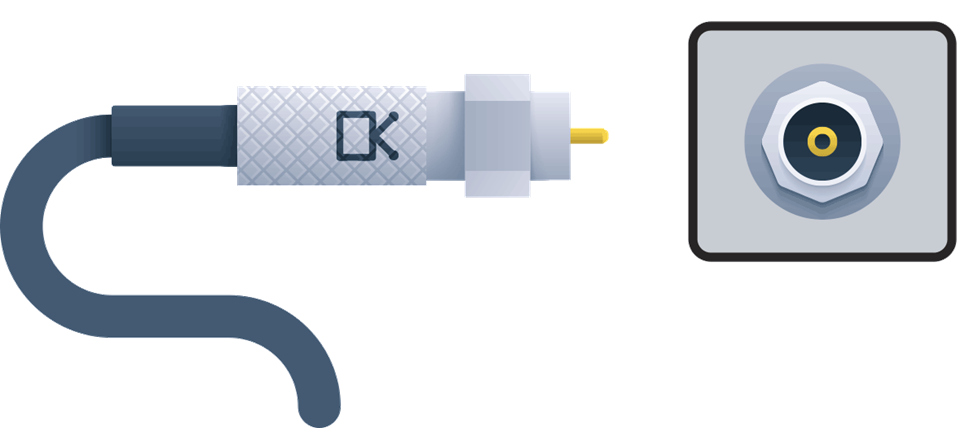
Coaxial cables should only be used to bring signals into your home from an antenna, cable feed, or satellite dish. It should never be used to connect a component to your TV because of its limited resolution.
Coaxial RF
What it does: Coaxial RF carries video and stereo audio information from a TV antenna, cable TV jack, or satellite dish. It should only be used to carry signals into your A/V system from outside your home. When used to send signals between components, it's the lowest quality video connection.
When to use it: Use a coaxial cable to connect an antenna to your TV. You can also use one for the input connections to a cable box or satellite dish.
What to look for: Standard coaxial cable is stamped "RG-59." Look for "RG-6" cable, which features a larger conductor, thicker insulation, and better shielding.
Are you installing the cable in your wall or underground? Make sure it's properly rated for either application.
Do audiophile power cords make a difference?
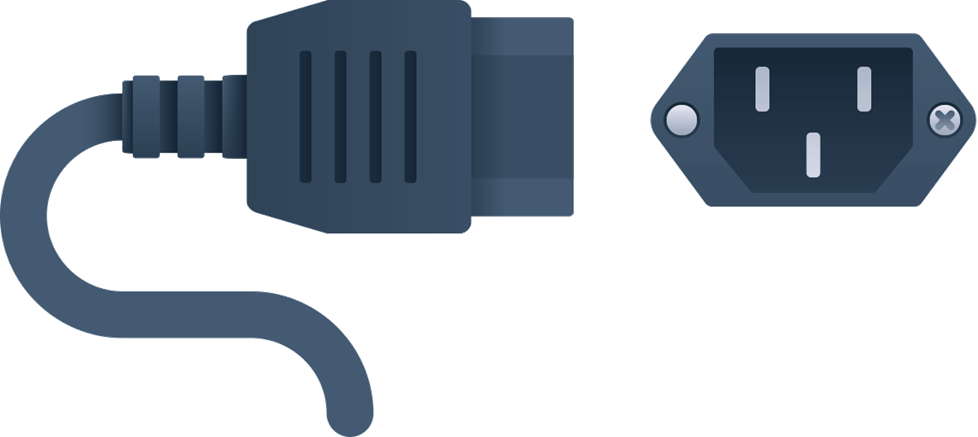
High-quality AC power cords can improve the performance of audio and video gear.
Are you an audiophile or a videophile? Consider upgrading your equipment's standard power cords with high-performance power cables.
Do aftermarket power cords improve the performance of an A/V system? In my experience, they do (although the improvements may be subtle).
These cables feature heavier, higher-quality copper wire than the flimsy "free-in-the-box" cables.
Some devices respond more noticeably than others to a better power cable. Opinions vary, but here's how I would prioritize upgrading your power cords:
- source (CD player, DAC, phono preamp)
- power amplifier, powered speakers
- preamp or A/V pre-pro, power conditioner
- powered subwoofer
Cable connection tips
Follow these general rules of thumb to get the best results from your cables.
Safety first
Make sure your equipment is turned off before connecting any new cables.
Try to keep power cords a few inches away from signal cords
AC cords can introduce interference into your signal-carrying interconnects. If this isn't possible, at least try to minimize contact between the two by crossing them at 90° angles when they do intersect.
Check to see if your interconnect cables are engineered for "directional" signal flow
If an interconnect has arrows printed on its jacket, hook it up so that the arrow is pointing away from the signal source. In these types of cables, the shield is grounded only on the end that connects to the audio or video source. The idea is that interference will drain away from the destination end of the cable.
Avoid kinking or bending the cable
Don't try to make a short cable reach. You don't want to put stress on the connector and dielectric. Buy a longer cable instead. This is especially important for optical interconnects.
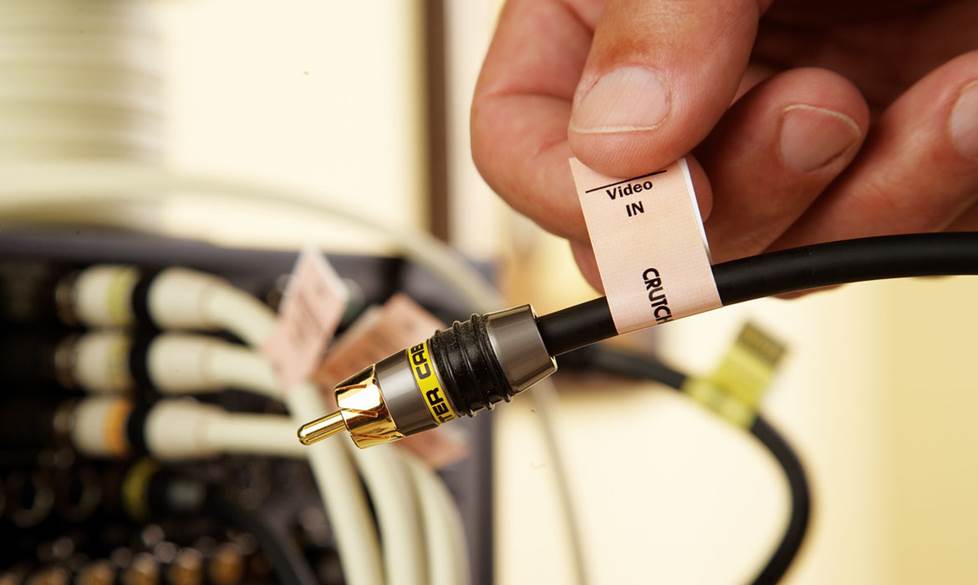
Our self-adhesive, color-coded labels keep your audio, video, speaker, and power cables clearly identified.
Don't keep excess cable lying in loops
Arrange it in an "S" shape or a figure-eight instead. This can help minimize electromagnetic interference.
Check your connections
Give them a look and a tug every year or so to make sure they're not loose. It's also a good idea to look for corrosion around metal plugs.
Label your cables
That way you'll know which cables go where, in case you have to move your system. And you'll make troubleshooting much easier. For more tips on how to manage your cables, check out our tips and techniques for home audio/video cable management.
Need adapters or wall plates for your A/V cables?
Looking for a signal splitter or a widget that converts one type of connector to another? We offer a wide variety of audio cable adapters.
If you're concealing cables behind your walls, you'll need some hardware for the outlets. We offer a variety of wall plates to help you get the job done.
What about speaker wire?
Looking for information about speaker wire? Please read our speaker wire buying guide.
Get free personalized advice from an A/V enthusiast
Have questions? Contact us today.
Our expert Advisors know the components and related cables inside and out. They'll help you choose the right cables for your gear and budget.
Your Advisor can send specific Crutchfield pages to your screen, saving you a lot of browsing time. You'll get a shopping cart loaded up with everything you need for your new stereo system or home theater.
Free lifetime tech support is included with your Crutchfield purchase.