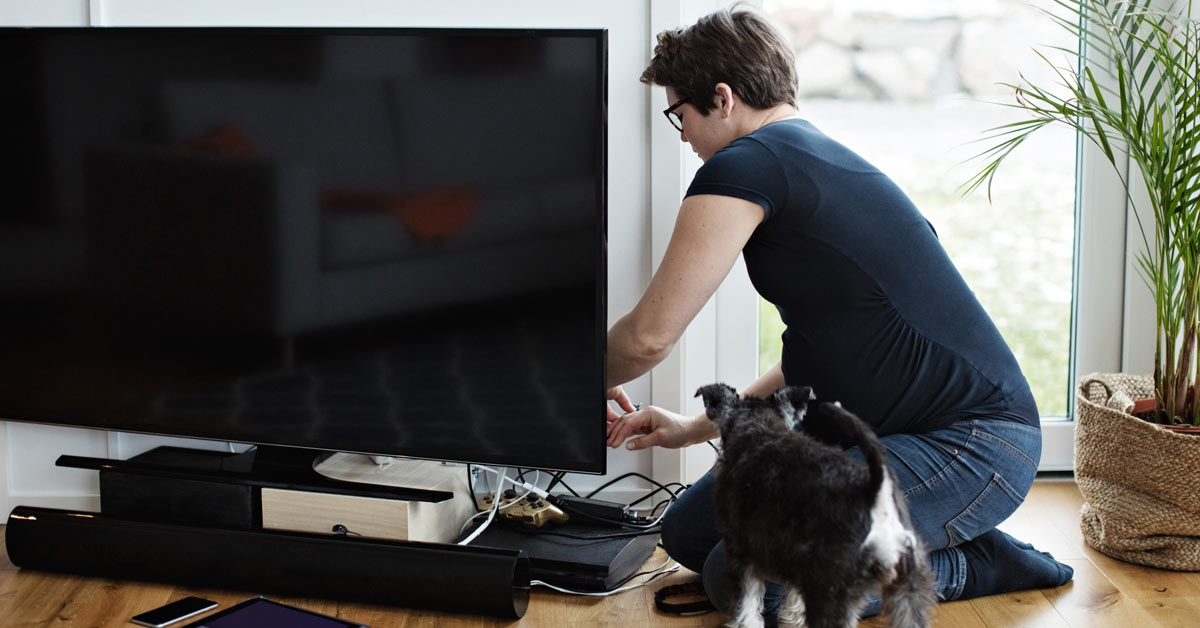
How to set up your new TV
Get the most out of your TV with these connections and settings

In this article: I'll talk about how to get your new TV up and running, including:
Modern TVs are capable of producing magic. But in order to achieve the spectacular experience you’ve been dreaming of, you need to get everything set up just right. We’ll show you how to start off on the right foot, and we’ll cover some common connection scenarios so that you get the best picture and sound for all your movies and shows.
Unboxing your new TV
Believe it or not, there is a “right way” to unbox a television. It’s important to carefully follow the instructions so that you don’t damage the TV you just spent a lot of time and money buying. Follow the link below for a step-by-step unboxing photo guide.
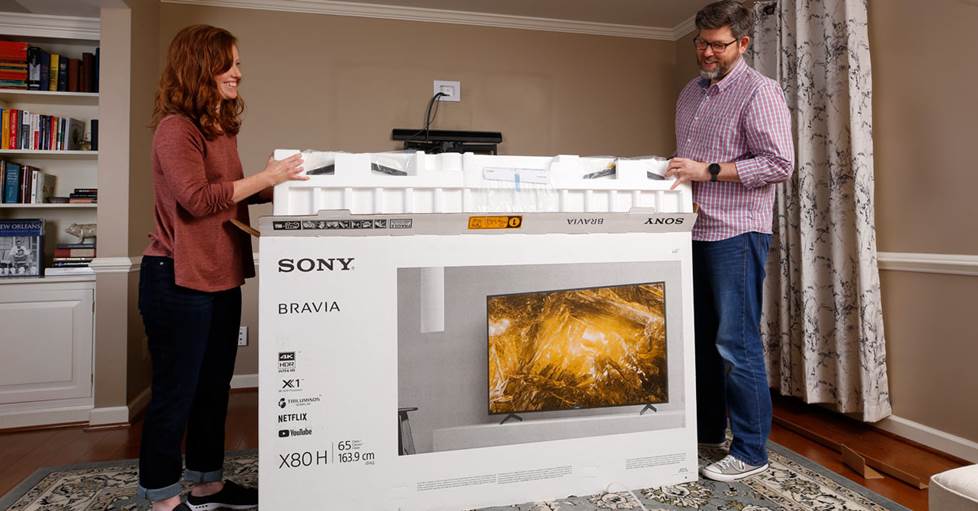
Step 1 — Cut the packing straps, open the top of the box, and remove the upper level of packing materials, along with any accessories nestled inside (remote, manual, stand).
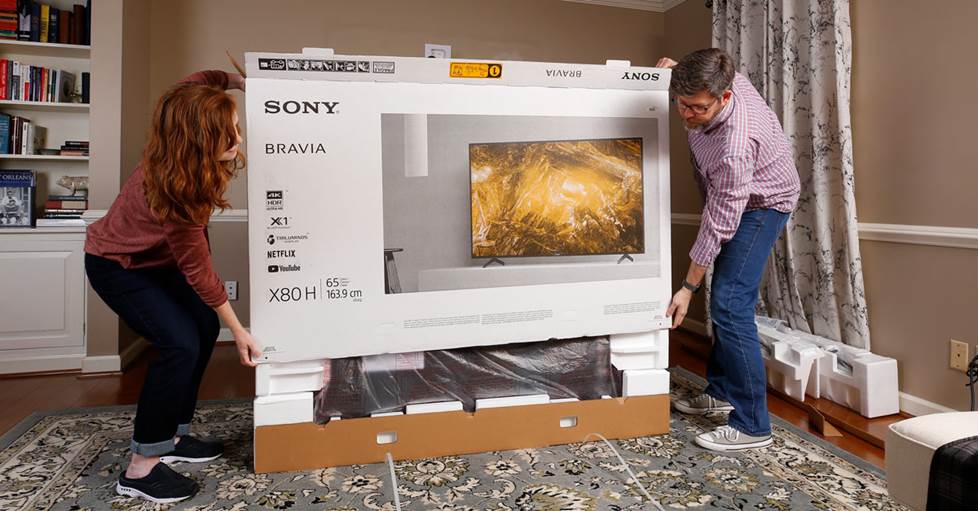
Step 2 — Release the plastic clips near the bottom of the box, then lift the box straight up using the handles on either end or the edges of the box. Leave the TV in place and upright on the ground.
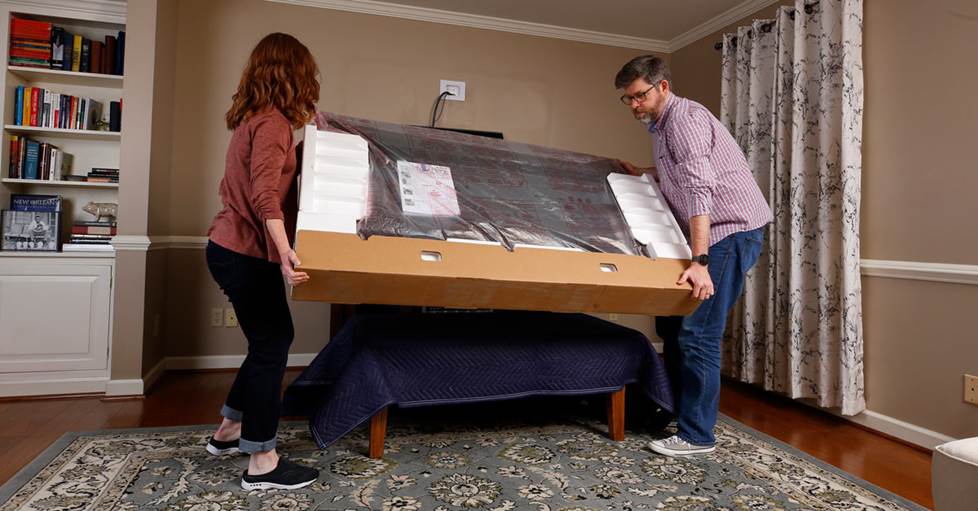
Step 3 — Lift from the bottom of the packaging, keeping one hand near the top of the TV for balance and support. Avoid applying pressure to the front panel as that may damage your screen.
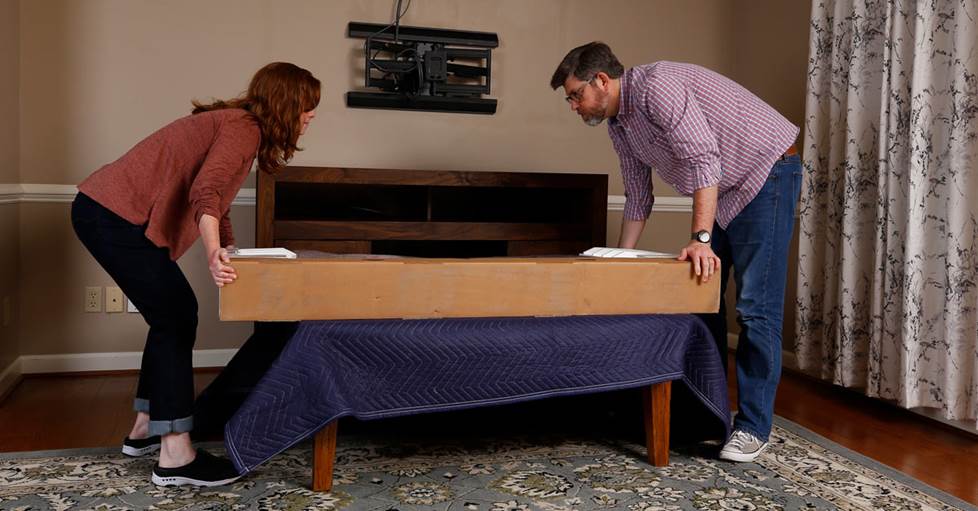
Step 4 — Carefully lay the TV flat, screen down, on a soft, clean surface. Place as much of the TV as possible on the surface with the bottom packaging hanging over the edge.
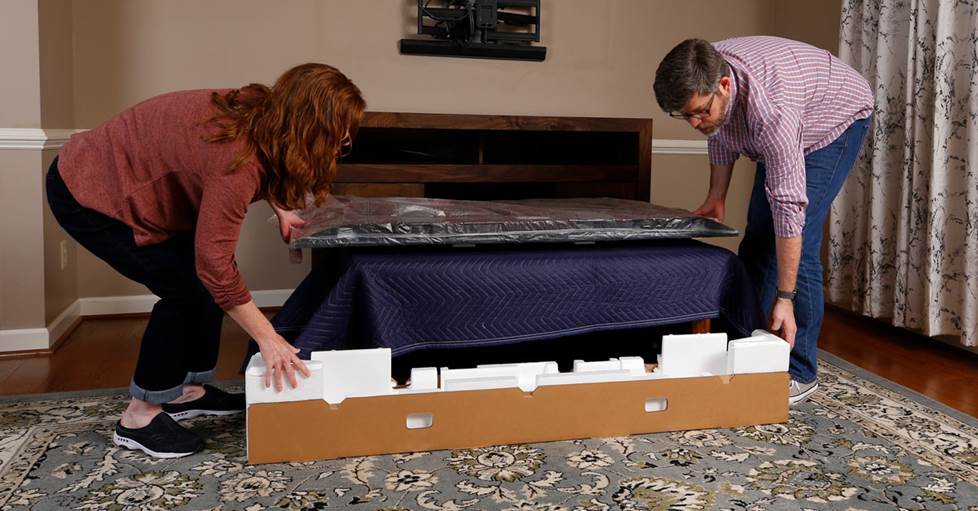
Step 5 — Remove the bottom packaging.
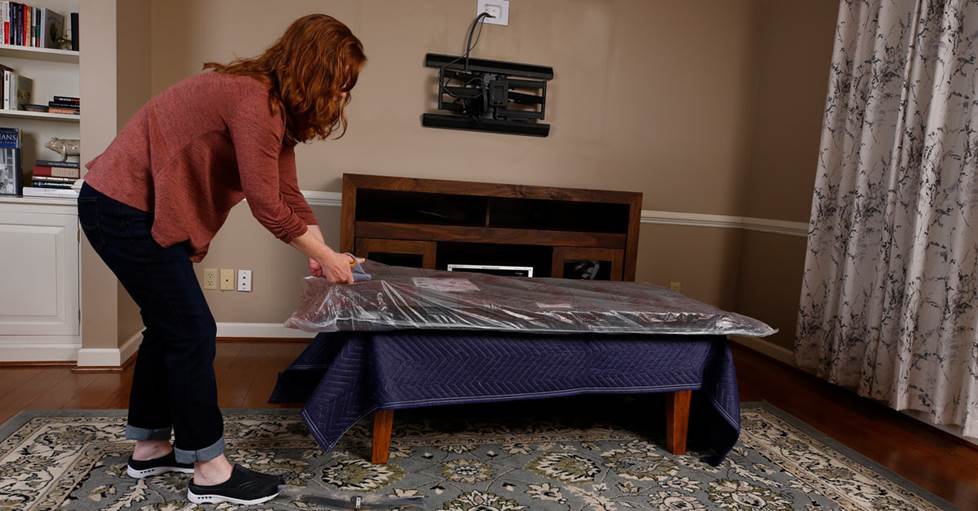
Step 6 — Remove the plastic cover.
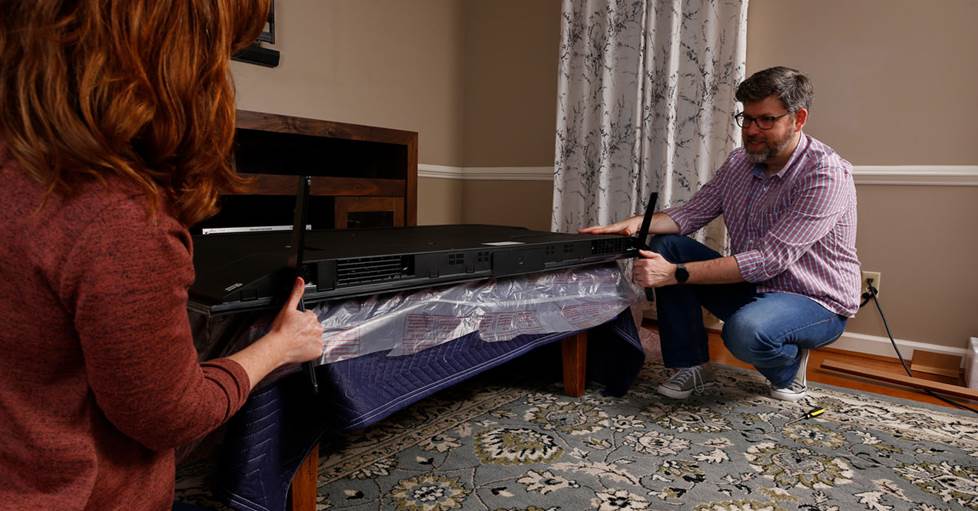
Step 7 — If you're not wall-mounting your TV, you'll need to attach the stand/feet. Consult the owner's manual for instructions for your specific model. Be careful to not over-tighten the stand screws.
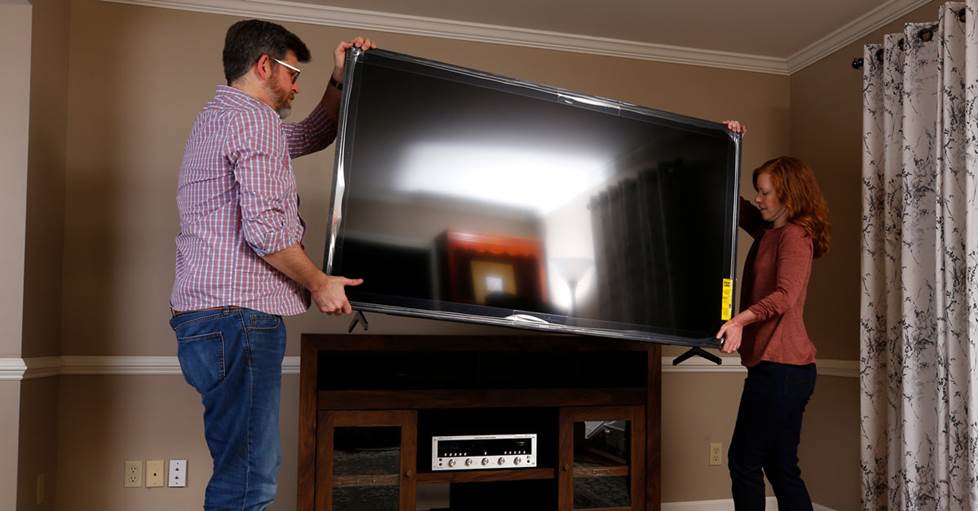
Step 8 — Once the feet are firmly attached, carefully lift the TV upright by holding the top and bottom edges. Place it in its final location and secure it, as necessary.
We also recommend keeping the box and all the packing material during the return window, just in case you need to send back the TV for any reason.
TV placement
The best spot for your TV is eye-level from your main viewing spot. It's a good idea to figure out where it’s going before you shell out the dough for it. Check out our TV placement guide for some helpful tips.
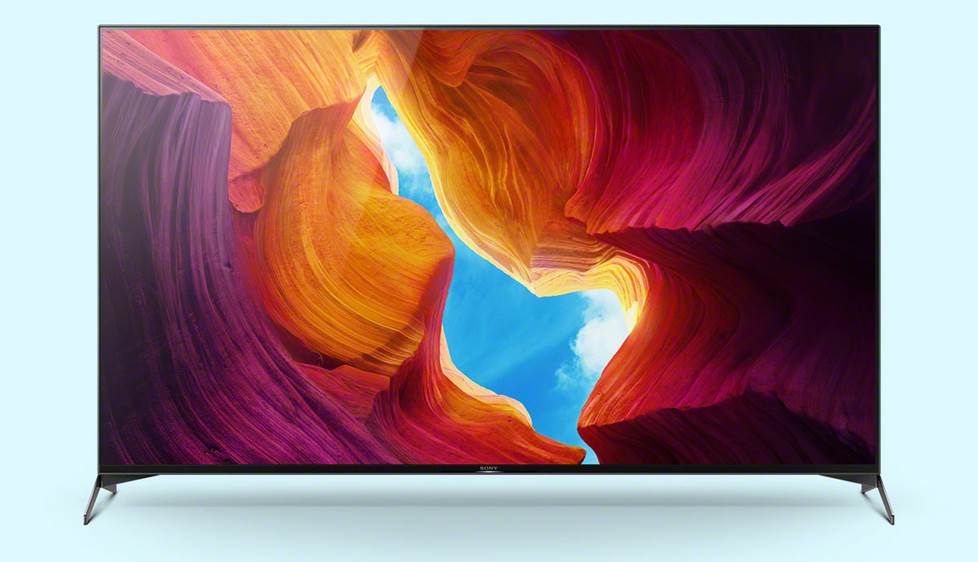

Most TVs give you the option to use a stand or mount them on a wall.
Keep it secure
Whether you are wall-mounting your TV or placing it on a stand, you’re going to want to make sure it is really secure so it doesn’t come crashing down. Read on for some products and suggestions that can help with that.
How to mount a TV on a stand
Nearly all TVs these days include either a pedestal base or two feet that you’ll need to attach. It’s a good idea to secure the TV to the stand or wall with a safety strap, too, especially if you have kids or pets.
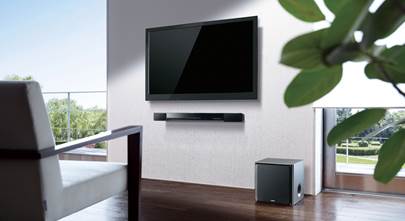
Most factory TV bases won’t swivel like the old ones used to. So if turning the TV is important (and you can’t wall mount it), consider a swivel stand. They are also a good option if your TV comes with a pair of feet that would be too wide for your furniture (though some TVs have multiple options for foot width). In addition to side-to-side swivel motion, they allow upward adjustment, which can also be helpful if the TV base is so low that a sound bar won’t fit in front of it.
Using a TV wall mount
Wall-mounting your TV makes for a streamlined living room. When shopping for a mount, make sure you get one that is compatible with the size, weight, and mounting pattern on your TV.
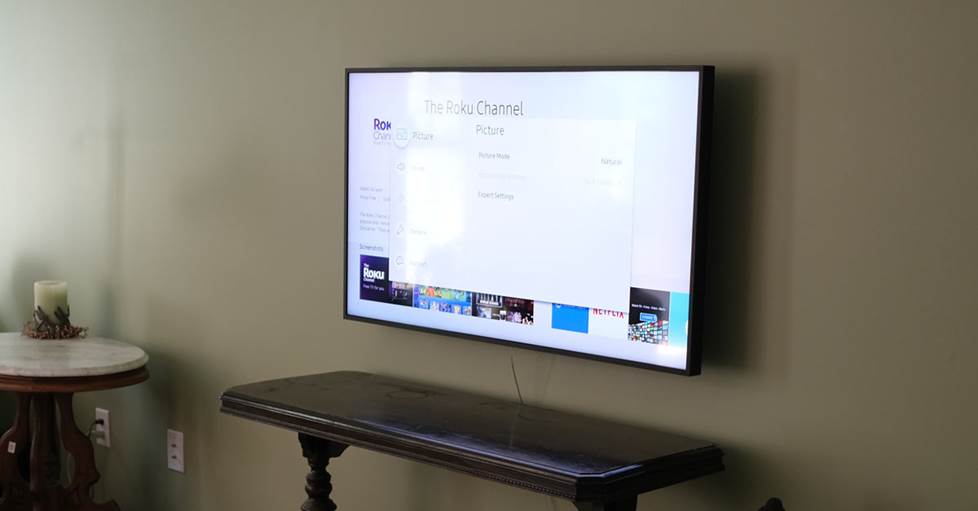
My mom's TV came with a wall mount that only accommodated 16" on center studs, but hers are 24" on center. So I bought a single-stud wall mount.
There are a few different kinds of mounts — from low-profile, stationary options to ones that can drop your TV down from a high spot above a fireplace. Swivel mounts can be helpful for avoiding light reflections at certain times of day. For a more detailed explanation of mount options, check out our TV Wall Mount buying guide.
For step-by-step instructions, follow our How to wall-mount your TV article.
Connecting audio and video sources to your TV
Behind the cabinet in my living room is a whole jumble of wires, and I don’t even have a very complicated setup. There are just so many ways to get content on TVs now, and there are a few different methods you can use to hook everything up.
Use HDMI for a high-quality, single-cable connection
You’ll need HDMI cables to connect most of your audio and video sources. If you have a 4K TV and other components that support 4K, you’ll need high-speed HDMI cables to pass a 4K video signal. Check out our HDMI Cables Buying Guide for more details.
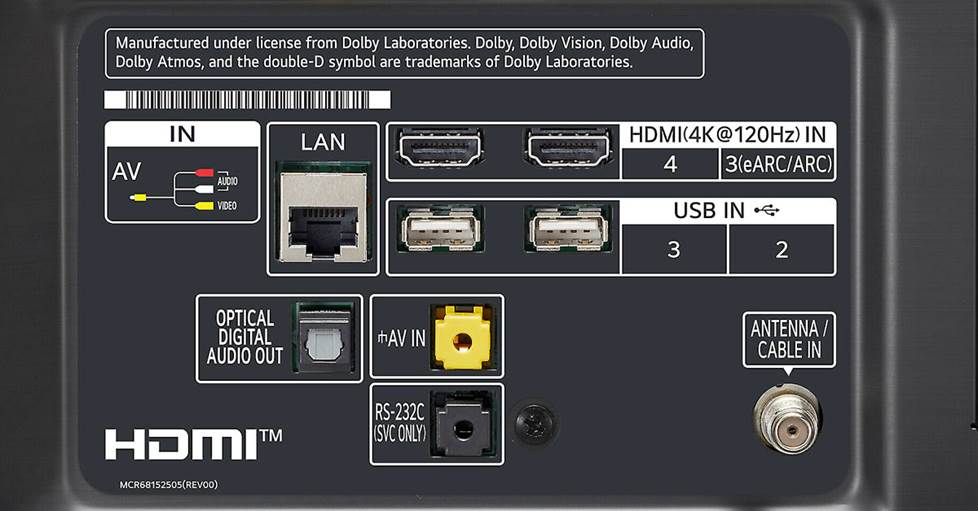
This LG TV has two HDMI 2.1 ports. One supports ARC/eARC for a single-cord connection to a sound bar or receiver. Learn more about ARC and eARC here.
HDMI is the highest-quality connection you can make — it can carry both high-definition video and high-resolution multichannel audio. You'll use it to connect most cable boxes, satellite receivers, gaming systems, Blu-ray players, and media streamers (like Roku and Apple TV).
The latest HDMI version — 2.1 — offers a huge increase in bandwidth. TVs with HDMI 2.1 can support higher video resolutions, including 8K UHD, and faster refresh rates. But they may only have one input capable of this, so you will want to use it wisely — likely for your gaming system. You'll also need a 2.1-compatible ultra high speed HDMI cable.
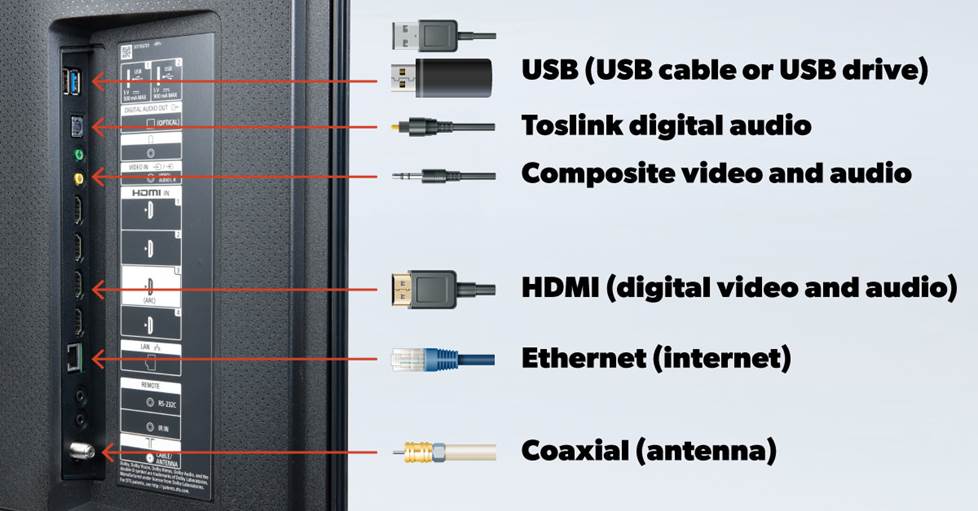
Connection options on new TVs are usually very well labeled.
Non HDMI connections
Some older sources, like DVD players, VCRs, and older game consoles might not give you the option to use HDMI. Here are some other variations you might see, along with why you might use them.
- USB: This is handy for powering small accessories including LED strip backlighting and streaming dongles like Chromecast.
- Optical digital/Toslink: Use this to get audio from your TV to a sound bar that lacks an HDMI input.
- Composite: This analog connection is usually made with a minijack port and an adapter. It can be used to connect a VCR or camcorder.
- Coaxial: Use this to connect an antenna to get over-the-air broadcast TV.
However you connect your gear, consider keeping it tidy with some cable ties. I use reusable ones. You can find more cable management tips here.
Connect to your network for streaming content
Pretty much every new TV these days is “smart.” They offer a ton of options for streaming content with apps like Netflix and Hulu. Many also offer support for Apple AirPlay 2 and Chromecast Built-in so that you can stream content from your computer or phone.
But in order to access these cool features, you’ll need to be connected to the internet. Most TVs will let you use either Wi-Fi or Ethernet to do this. Either way, you’ll likely need to navigate to your TV’s network settings to get connected.
A wired connection will be more reliable, and you’ll appreciate this when you are streaming movies or other content. So if it’s feasible, I suggest choosing the Ethernet option for a strong, stable connection.
If your TV isn’t anywhere near your router, you can select the Wi-Fi option in your TV’s network settings. You’ll need to enter your network’s name and password. Alternatively, you can use a powerline kit to connect to a router in another room using your home’s electrical system.
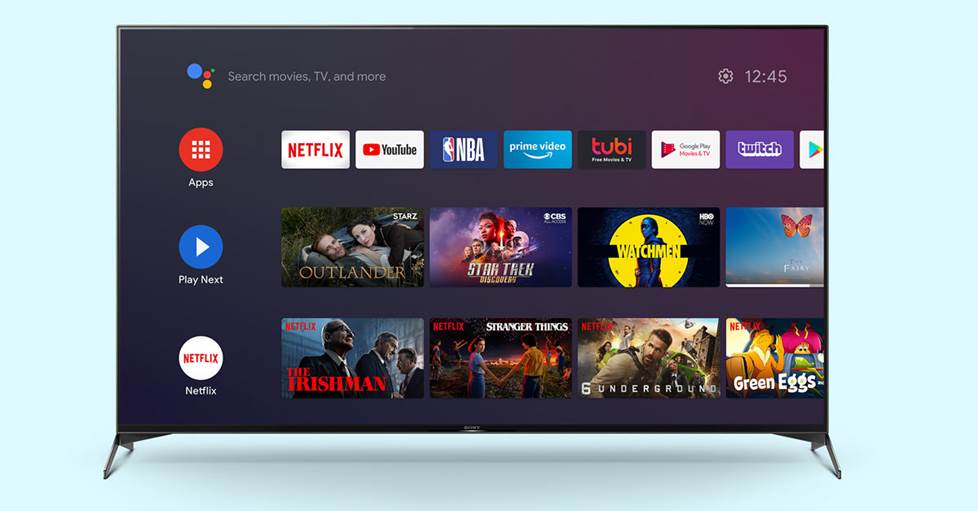
Smart TVs come with a lot of apps pre-installed and many more available for download.
Better sound for your new TV
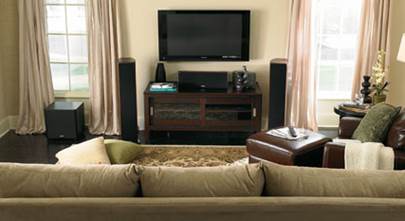
Today’s ultra-thin TVs just aren’t known for their sound quality. Fortunately, there are a lot of ways to upgrade that. One of the easiest, most popular solutions is a sound bar. But if you’re looking to add a major upgrade to your movie nights, consider a full-on home theater system.
If you choose to connect to a separate audio system, you might need to make some adjustments in your TV’s audio menu. Check out this article for more in-depth info on hooking up a sound bar, or this one if you want to set up a home theater system.
If you aren’t using a sound bar or a receiver and speakers, you might need to adjust the TV’s audio settings to better suit your needs. These features can be accessed in the settings menu, usually under “sound.”
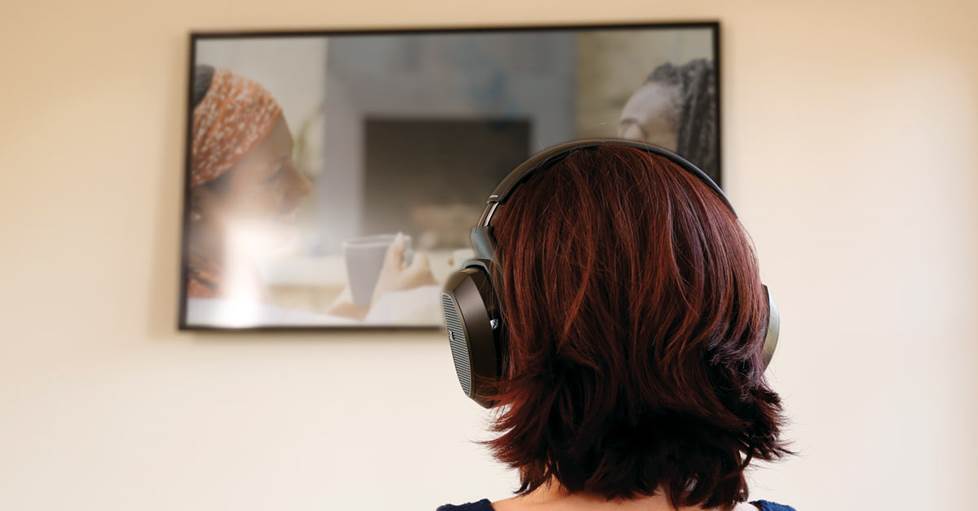
Use headphones to hear the TV better without disturbing the rest of the household.
In addition to sending your TV audio to a home theater speaker system or a sound bar, some TVs also allow you to send that audio signal to headphones. Check out Jeff Miller's Best Wireless TV Headphones article for more info on that.
Dial in the picture settings
The default picture settings on a TV are usually designed to make the picture look vibrant in a bright showroom, so they can seem pretty harsh in your living room. Spending a few minutes diving into your picture settings will be time well spent — and your eyes will thank you!
Start with the factory presets
One super-simple solution is to flip through your TV's preset picture options. I do this whenever I set up a new TV. It can also be helpful to check out other modes when you change from one kind of program to another or when the room gets brighter or darker.
Each preset has its own settings for the most common picture parameters: brightness, contrast, color, sharpness, etc. Usually, even when you select one of these presets, you can still make further adjustments to tweak the picture to your liking. These common presets can be a good starting point.
Movie/Cinema: This is going to be your best bet for a realistic picture, especially for HD sources and nighttime viewing.
Dynamic/Vivid: This creates a very bright, sharp image with increased contrast. It might be a good place to start if you are watching in a very bright room.
Standard: If you don't want to change your settings from day to night or for different content, this might be the preset for you.
Some TVs also have some specialty modes. One that we are pretty excited to see is "Filmmaker Mode." This mode disables post-processing so that you see the content exactly how the creator intended it. Most notably, this will turn off any motion interpolation, so that you don't get that artificially smooth "soap opera effect."
If you're a gamer, you might also want to check out "Game Mode" which disables unnecessary processing for a faster response time. TVs with Auto Low Latency Mode (ALLM) can do this automatically when you turn on your console.
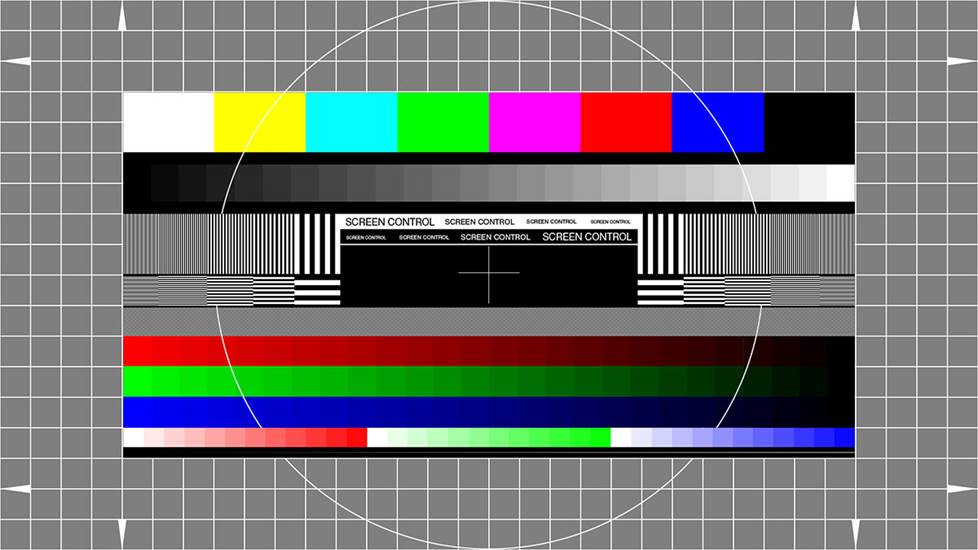
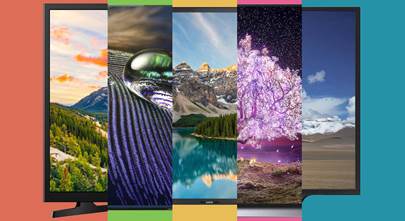
Free downloadable test patterns can help you calibrate your TV. It's important to use one that matches your TV's resolution.
A few basic tweaks
Your Blu-rays might need little or no enhancement to look their best, while lower-quality signals might benefit from a bit of noise reduction, increased sharpness, and color correction. Fortunately, many TVs let you create and store customized picture control settings for each video input. Here are some settings to try tweaking for a more custom-tailored picture.
Brightness: This control is more officially known as "black level." It changes the color and brightness of black within the picture and is often set very high out of the box. Ideally black should look black, but you should still be able to see details in dark scenes.
Contrast: Often labeled "Picture," it is more accurately known as "white level." This setting controls the set's overall light level, and is also typically high by default. Try lowering it to see if you see more details in bright areas.
Color: Usually labeled "Color" or "Saturation," the color level is probably the most subjective picture adjustment. Fortunately, factory settings for color are usually close to where they should be.
Sharpness: Sharpness could more accurately be called "artificial edge enhancement." While it can sometimes improve the look of lower-quality signals like standard broadcast, cable, and satellite programs, it is not needed for most HD sources. Having it set too high often creates halos around the edges of objects onscreen.
TV remote control options
TV remotes have gotten really smart. For example, the Samsung QLED I got my folks came with the very snazzy OneRemote which automatically detects and controls connected devices and content. But there are also a bunch of other ways to control your TV and connected devices, too.
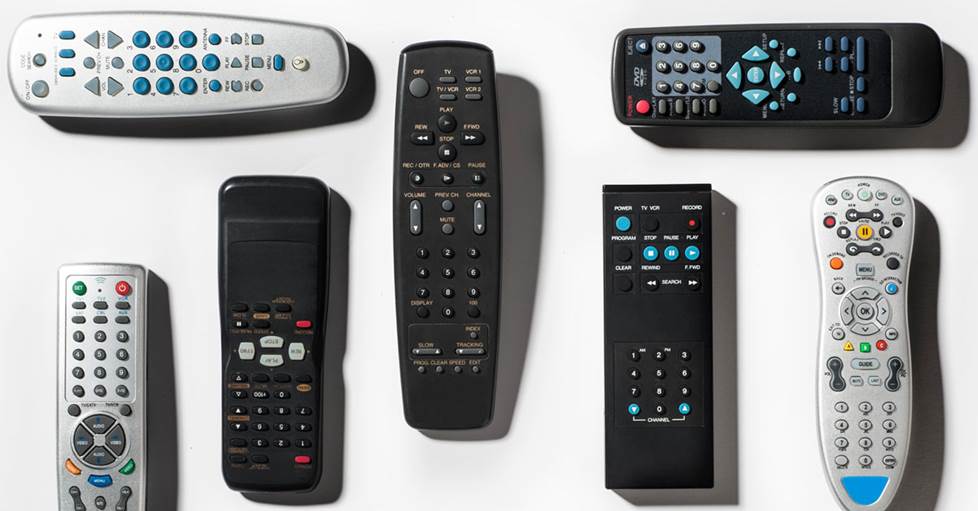
My TV in college didn't even have a remote. Now there are ways to control nearly everything remotely.
HDMI-CEC
HDMI-CEC (short for “Consumer Electronics Control”) allows you to use one remote to control multiple HDMI-connected devices. It can also signal your TV to change inputs when you turn on a compatible device — for example, power on your PS4, and your TV will switch to the proper input so you can play.
HDMI-CEC is not always enabled by default. And it can be tricky to find because it’s often labeled with a brand-dependent trade name. For example, it’s called BRAVIA Sync on my Sony TV. Samsung calls it Anynet+, and LG calls it SimpLink. How well this works may depend on how the TV manufacturer and device manufacturer implemented HDMI-CEC.
Voice and app control
Most new TVs give you some kind of voice control option like Amazon Alexa or Google Assistant, allowing you to adjust the volume, change channels or inputs, and control other basic TV functions. Usually, this feature is accessed via a button on the remote control. Some TVs have a totally hands-free option with built-in mics in the TV. Others simply offer compatibility with standalone voice assistants.
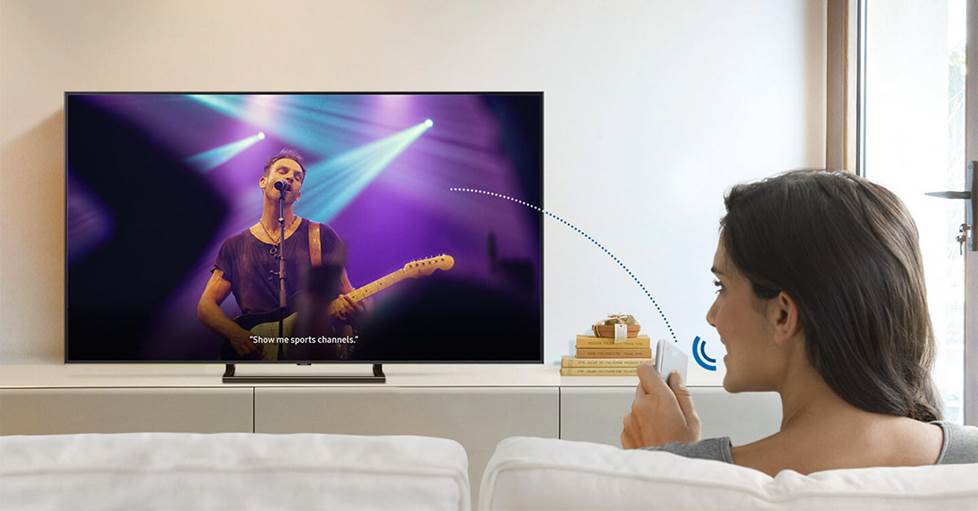
Searching with your voice is so much faster than typing out what you want.
If you like controlling stuff from your phone, most TVs offer free mobile apps that let you access all the important features. For example, my Mom can use the SmartThings app to control the Samsung TV I got her.
Privacy concerns
Much like your phone, smart TVs have built-in features that gather data about how you use them. One common way they do that is Auto Content Recognition (ACR) which identifies the shows and movies you watch. This information can be sent to your TV's manufacturer who can then share it with other companies.
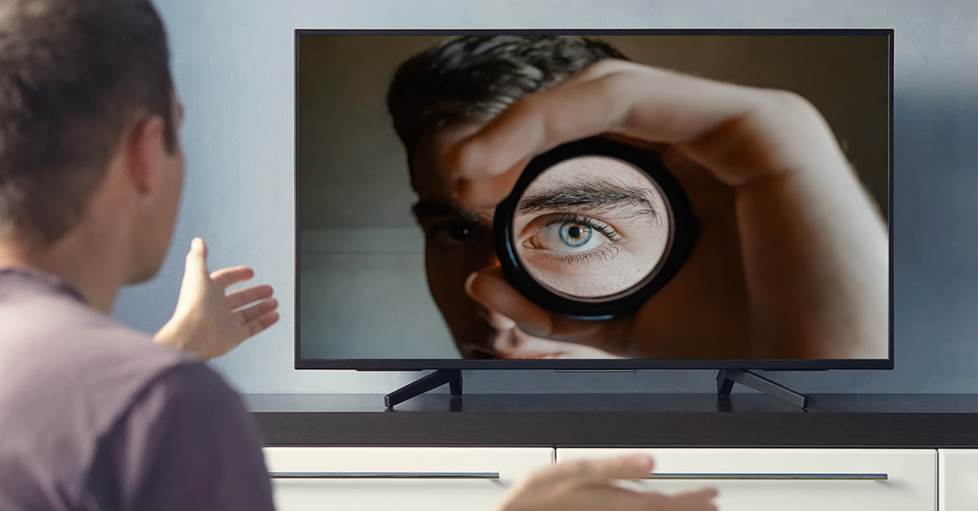
We often sacrifice privacy for convenience, but there are some things you can do to control the data you share.
If you want to control how data about you and your viewing habits is gathered and used, you should scroll through the privacy policies during the TV’s initial setup process. You should be able to decline some of the data-gathering features like ACR right from the start. You can also go back later to opt out of some of them, though this will involve digging through your TV’s settings quite a bit. And you likely can’t opt out of all of them unless you disconnect from the internet completely.
Don’t forget the power protection!
TVs are a big investment. So is all the gear that goes along with them. I have two 8-outlet Panamax surge protectors behind my media cabinet, so I can make sure all my stuff is protected.
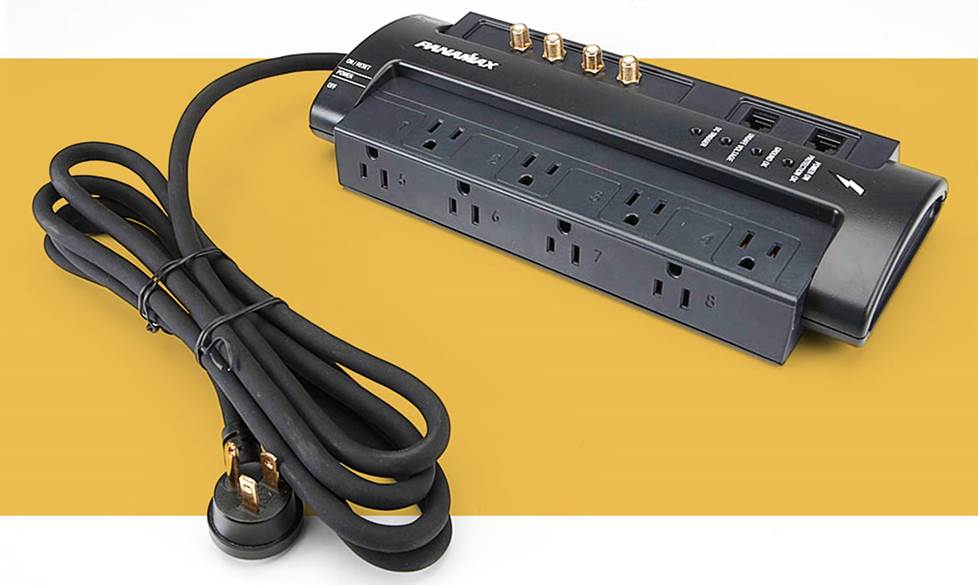
Protect your expensive gear from potentially dangerous electrical issues with quality power protection.
You can also actually improve your TV's picture, and in some cases extend its life, by using a higher-quality power protection and line conditioning unit. These components clean and filter AC power, often resulting in a noticeably crisper, clearer picture. For more info, see our article on choosing power protection.
Want to find high-quality content to really show off your new TV? Check out these helpful articles by my colleague Jeff Miller:
Feeling stuck?
If you have questions about your specific scenario, your TV’s help menu can be a good resource. But if you need a little extra help, feel free to contact us. We offer free lifetime tech support with every Crutchfield purchase.


Comments (0)