HDMI cables buying guide
How to choose the right cables to connect your gear

In this article: We'll cover some of the basic features of HDMI cables. And we'll talk about different HDMI versions you might encounter, including the most recent one, HDMI 2.1.
We'll also provide shopping tips and answers to these common questions:
1) Do I need a special HDMI cable for 4K?
2) How long should my HDMI cable be?
3) Does it matter which brand of cable I use?
And we'll look at some real-world HDMI hookup issues, along with solutions and workarounds.
HDMI is the best way to connect the latest HD and UHD TVs and projectors to home theater sound systems and other AV components. Blu-ray players, media streamers, game consoles, and satellite and cable TV set-top boxes all use HDMI.
One cable for high-quality audio and video
HDMI supports high-resolution video and multi-channel audio through a single-cable connection. Newer versions of HDMI have more advanced capabilities than older versions. But you can still connect newer TVs to older AV components and vice versa.
The most recent HDMI versions support 4K UHD video resolution and up to 32 channels of audio. HDMI 2.1 is the latest version. It allows streaming of advanced surround sound formats like Dolby Atmos and DTS:X and supports 8K video.
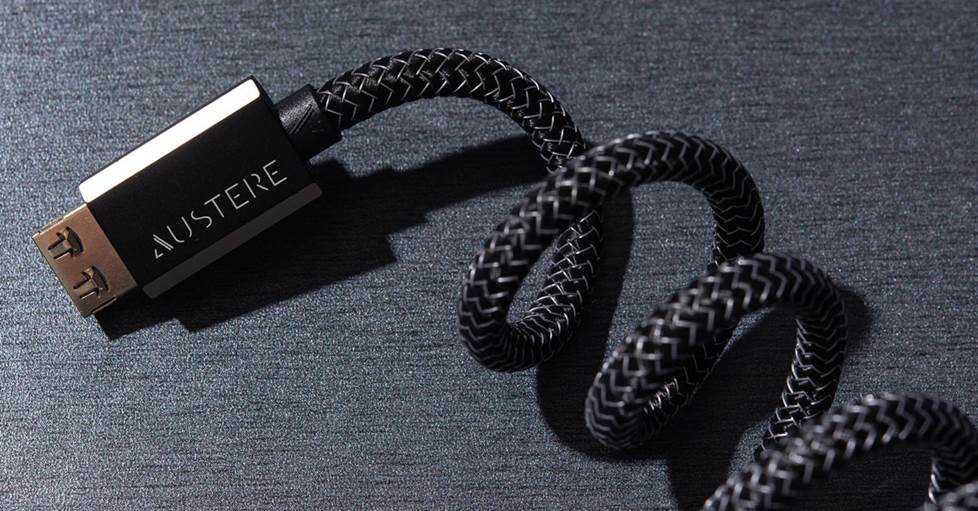
Austere's VII Series 8K HDMI cables use innovative technologies and materials to ensure maximum speed, reliability, and compatibility.
4K vs. 8K
4K is still the highest resolution for Blu-ray and streaming video content. And until recently, it was also the highest resolution supported by TVs and other AV components.
You can find HDMI 2.1 TVs and home theater receivers with support for 8K, but it will be at least a few years before native 8K video content is widely available. PS5 and Xbox Series X game consoles also support 8K, though we don't expect to see native 8K games any time soon.
What is HDMI ARC?
Most TVs, receivers, and sound bars manufactured in the past ten years support HDMI ARC (Audio Return Channel). ARC lets you get video and sound through a single HDMI cable. If you have an older receiver or sound bar, you might need to use an optical digital cable to get audio from your TV, even if your TV supports ARC.
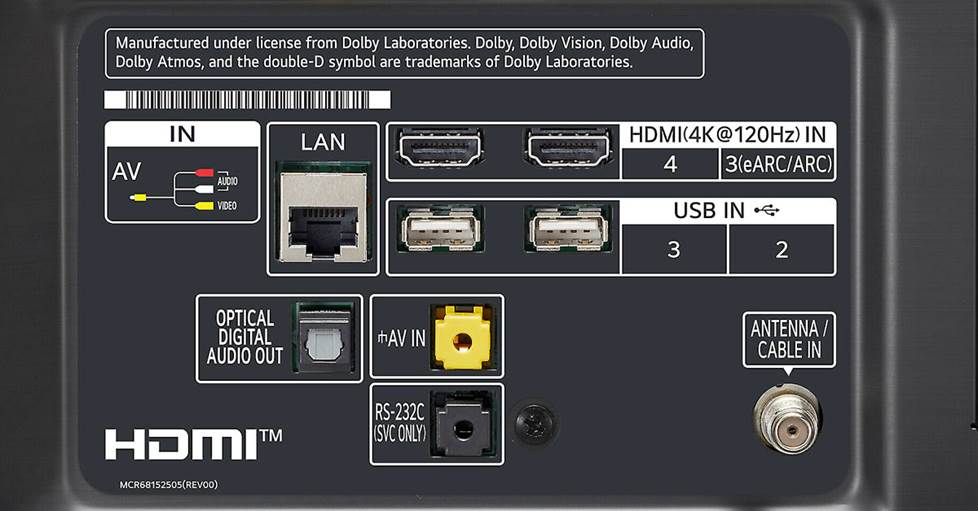
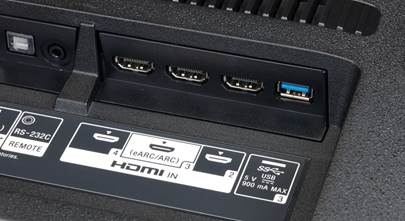
Be sure to use the right TV input for ARC. This TV's input panel has two HDMI inputs, but only one is compatible with ARC/eARC.
eARC adds major improvements for streaming audio
eARC (enhanced Audio Return Channel) is a newer, more advanced version of ARC. It provides much greater audio bandwidth and can handle multi-channel Dolby Atmos and DTS:X audio signals via streaming.
eARC is compatible with TVs and components that support the latest HDMI 2.1 spec — mostly those released from 2019 on. It can sometimes be added via firmware update to components that didn't come with support for HDMI 2.1. Both your TV and your sound bar or receiver must be compatible with eARC for it to work.
HDMI versions and compatibility
Each new HDMI version is backward-compatible with older versions, so you don't have to worry much about compatibility issues.
Older and newer HDMI equipped components can still work together, but their capabilities will be limited to the oldest supported HDMI version. So if you're working with a TV or component that uses HDMI 2.1 and want to take advantage of its features, you'll need to upgrade your other components to 2.1.
Here is a brief rundown of the most recent versions of HDMI leading up to 2.1, and the important features they support.
HDMI 1.4 — this 2009 release introduced ARC capabilities and support for 4K at up to 30Hz.
HDMI 2.0 — this 2013 release introduced the ability to pass 4K resolution video at 60Hz.
HDMI 2.0a — this 2015 update added support for HDR video.
HDMI 2.0b — this 2016 update added support for the HLG (Hybrid Log Gamma) HDR format.
HDMI 2.1 — this 2017 update introduced a huge increase in bandwidth capability to support higher video resolutions and refresh rates, including 8K at 60Hz and 4K at 120Hz. It also adds eARC capabilities.
TVs and components manufactured before the release of HDMI 1.4 will not support ARC, 4K or HDR. But they do support video resolutions up to Full HD 1080p, which is still widely used.
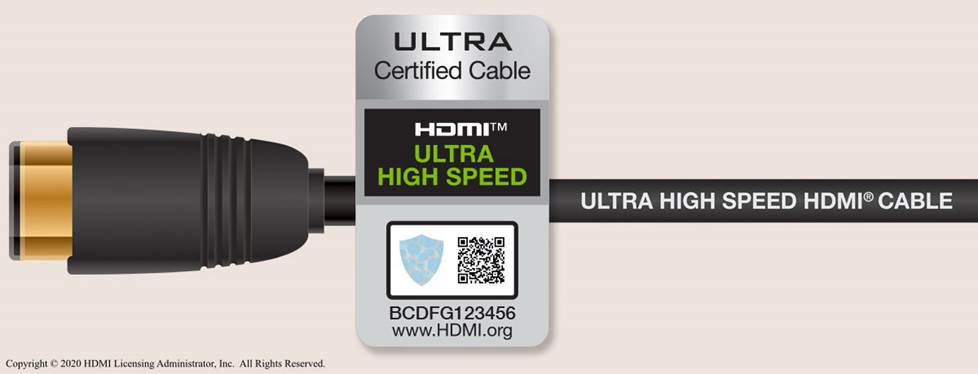
Ultra high speed HDMI cables let you take advantage of all the features of HDMI 2.1, including 8K video, eARC, and faster refresh rates.
What's new with HDMI 2.1?
The HDMI 2.1 spec is geared toward the eventual release of 8K UHD video content. But it offers some features you can take advantage of now if you have compatible gear, like the ability to stream high-resolution multi-channel audio formats like Dolby Atmos and DTS:X, and faster refresh rates for 4K video.
TVs and components that support HDMI 2.1 are also backward-compatible with earlier versions of HDMI. So if you have a brand new 8K TV hooked up to a receiver or other component that only supports 4K, you'll be able to enjoy up to 4K resolution video on your screen.
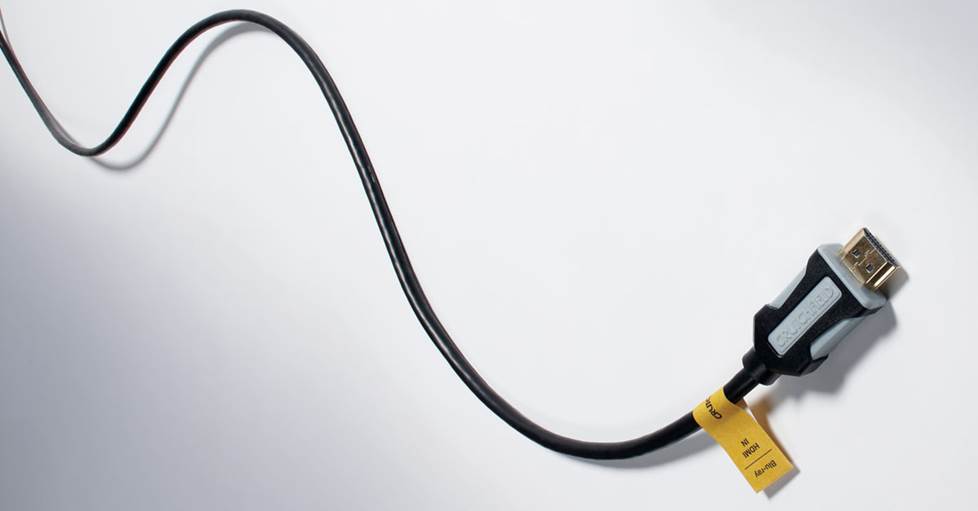
Crutchfield's premium high speed HDMI cables are certified to handle 4K UHD video and HDR. They are also CL2-rated for safe in-wall installation. Using multiple cables? Cable labels help you keep track of your connections.
Quick tips for choosing HDMI cables
Some AV components include an HDMI cable in the box, but most don't, so you should plan on buying one. Not sure where to start? We'll answer some of the most important questions you might have below.
Do I need a special HDMI cable for 4K?
Depending on how old — and how fast — your current HDMI cables are, you may not need to upgrade to get a 4K picture on your TV.
4K UHD video signals require a faster HDMI cable than HD or Standard-definition signals. High-speed HDMI cables are also necessary for taking advantage of the HDR (High Dynamic Range) technology built into 4K TVs and Blu-ray players.
Higher speed HDMI cables also allow for quicker refresh rates at different video resolutions. 60Hz is an adequate refresh rate for 4K TV viewing, but gamers may prefer even faster refresh rates for a smoother on-screen experience.
The easiest way to figure out if an HDMI cable is 4K compatible is to check its speed rating or its maximum bandwidth.
| Cable speed | Maximum bandwidth | Supported resolutions, refresh rates, and HDR formats |
|---|---|---|
| Standard Speed | 10.2 Gbps |
|
| High Speed | 18 Gbps |
|
| Ultra High Speed | 48 Gbps |
|
A cable rated at 18 Gbps maximum bandwidth is fast enough to give you 4K video. If your HDMI cable is labeled “high speed,” it should be able to pass a 4K signal at lengths of up to three meters.
As mentioned above, 8K TVs are still less common than 4K, but if you're a gamer, ultra high speed HDMI cables will give you the quickest refresh rates with the latest game consoles, even if 4K is the maximum resolution your TV will allow.
And if you do happen to be using an 8K screen with one of the new game consoles, ultra high speed HDMI cables also let you take advantage of new HDMI 2.1 features like Variable Refresh Rate (VRR) and Auto Low Latency Mode (ALLM) for a lag-free gaming experience.
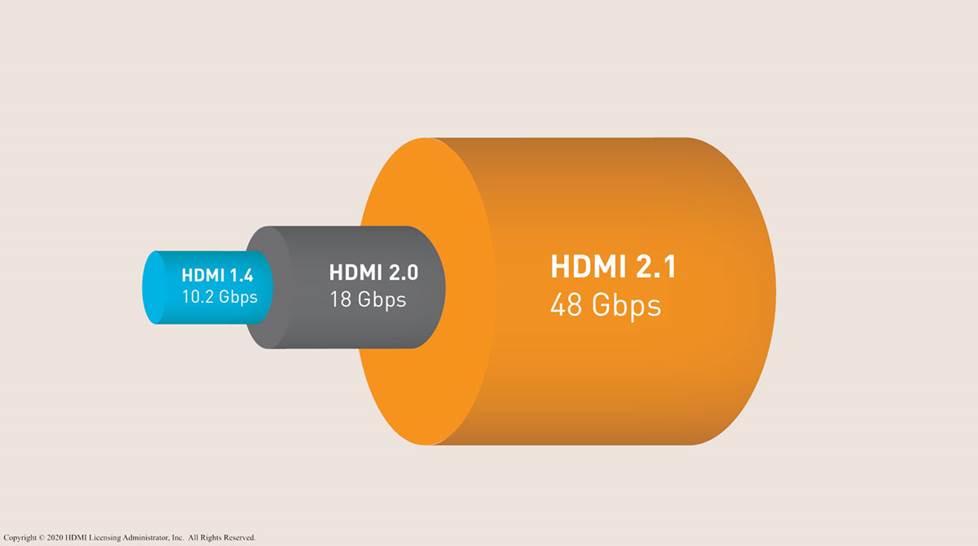
HDMI 2.1 features require much greater bandwidth than previous versions of HDMI.
How long should my HDMI cable be?
As a rule, you'll want to use the shortest HDMI cable you can manage to keep audio and video signals from having to travel a long distance. Most hookups are easy to do with cables that are under six feet in length.
Longer HDMI cable lengths can cause issues, depending on the quality of the cable and how you have it routed. Any sharp bends can cause problems, and if you're running a cable for a distance of over 20 feet, it's wise not to skimp on quality.
And what if you need to run your cable over an extra long distance, like to connect a projector, for example? You have a few options.
For distances of 12 feet or more, we recommend active HDMI cables. These specialized cables include a processing chip to ensure that your signals travel from your video components to your screen with no loss or interruption.
Look for HDMI cables that are in-wall rated if you want to run them through your walls or ceiling.
High-tech fiber optic HDMI cables deliver outstanding picture and sound quality at distances up to 1,000 feet. With these cables, there's no signal loss over long runs. And they're immune to interference from appliances, wireless devices, and computers. Fiber optic cables are very delicate, so installation is best left to a professional.
Active hybrid HDMI cables offer most of the benefits of fiber optic cables in a more rugged and stable package that's much more DIY-friendly. These slim, flexible cables are a good choice for pre-wiring new homes.
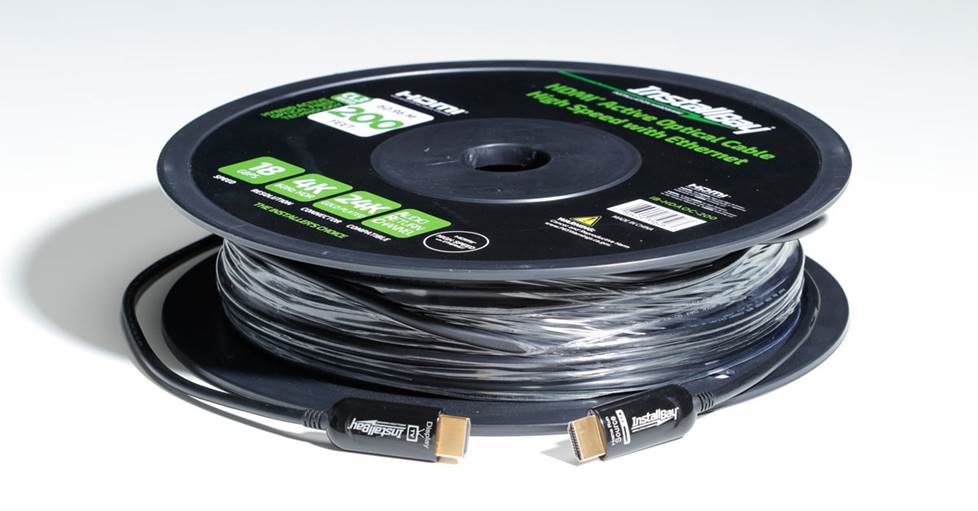
An active HDMI cable is a great way to go when you have a long cable run between a 4K source and your 4K TV
Does it matter which brand of cable I use?
When it comes to transmitting high-quality audio and video signals, nearly all HDMI cables of decent quality are up for the job, especially when they only have to go a short distance. Most of us won't notice subtle differences in audio or video quality between different brands. If something about the cable is off, you simply won't have a picture on your screen.
One caveat here is that not all of the HDMI cables in the world are of great quality. Our Tech Support director Phil says that many cables are advertised and packaged so they seem to be of high quality but are not. Still, you don't have to break the bank to get a good cable — there are lots of reasonably priced options from reputable manufacturers.
Some HDMI cables use higher-quality materials, which ensures they'll stand up to long-term use. If you’ve invested in high-end components, a better cable can give you the best audio and video quality. For longer cables, or cables you want to run through a wall or ceiling, it makes sense to step up to a more expensive option so you won't have to worry about replacing it anytime soon.
Troubleshooting HDMI connection problems
Using components with different HDMI versions may cause some interoperability issues. For example, you won't be able to take advantage of HDMI 2.1 features with non-2.1 gear and/or lower-speed cables. And if you're using an AV receiver, you may encounter "handshake" problems when powering on your system.
HDMI "handshake" issues: what to do when there's no picture on your screen
HDMI handshake problems usually happen when the multiple components in your system fail to "talk to" one another.
If you are getting a blank screen when you go to watch a movie or play a video game, it could be because one component in your system failed to complete the HDCP authentication process. It could also be due to a faulty connection. So the first thing you'll want to do is to check that your cable isn't bent, and that both ends are firmly plugged in to your TV and Blu-ray player or game console.
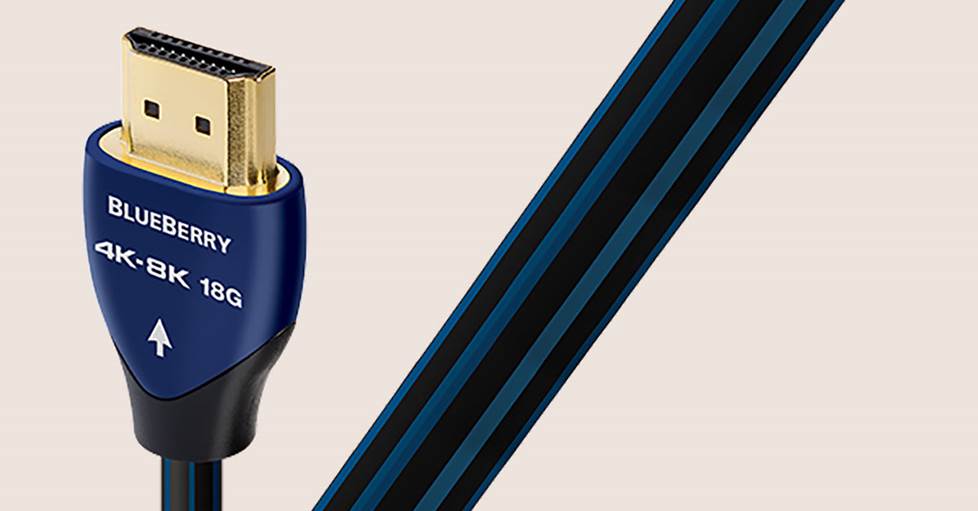
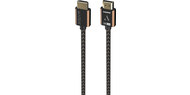
Most directional cables, like the ones made by AudioQuest, have arrows printed on either end to show you how to plug them in.
Are you using a directional HDMI cable? Directional HDMI cables send signals in only one direction, so if the ends are reversed, you won’t have an image on your screen.
If your connection is solid, try powering off your system and powering it back on, switching on your components in a different order than you normally do. If you usually turn the TV on first, try switching on the receiver before you do that. Sometimes that's all it takes. If that doesn't work, you can try using a different input on your TV or receiver.
If you still aren't getting a picture after trying the tips above, check online to find out if there's a firmware update available for your TV or receiver. Occasionally, HDMI handshake problems are caused by a fault in manufacturing.
HDMI ARC issues: what to do when there's no sound
To get both audio and video from an HDMI connection, you'll need to make sure that your TV and receiver or sound bar have ARC capabilities. They should support HDMI version 1.4 or higher, and have connections labeled "ARC." You will also need a high-speed HDMI cable that supports HDMI 1.4 or higher.
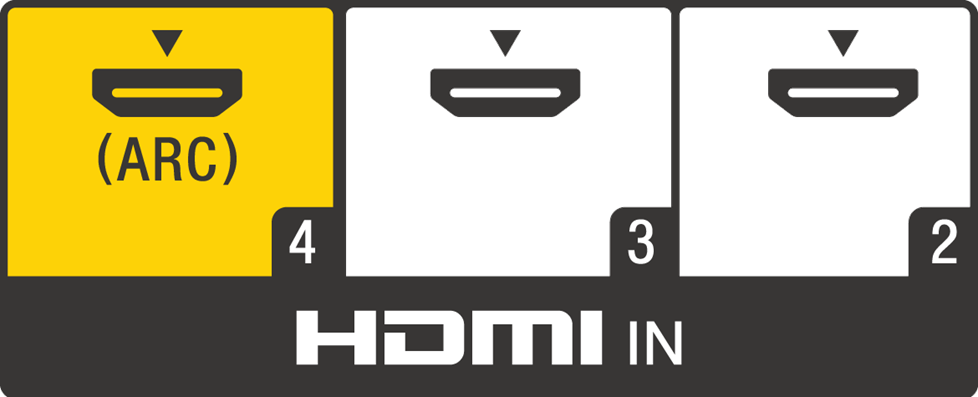
Use the TV input labeled "ARC" to enable the audio return channel feature.
Make sure to connect the cable from the HDMI output of your sound bar or receiver to the input labeled "ARC" on your TV. Most TVs only have one input that's compatible with ARC. A lot of the time, if there's no sound, it's because the HDMI cable is plugged into one of the other TV inputs.
HDMI Control — also known as HDMI CEC (Consumer Electronics Control) — must also be activated on your TV and sound bar or receiver for ARC to work.
Different manufacturers use different names for HDMI Control. Sony calls it Bravia Sync, Samsung calls it Anynet+, and LG calls it Simplink. Here are some links to guide you through the process of activating HDMI Control for these three brands:
If your receiver or sound bar isn't switching to the TV or audio input on its own when you go to watch something, it means that HDMI Control isn't activated on one or possibly both devices and needs to be turned on. If you’re using an AV receiver, you’ll have to activate HDMI Control manually, but some sound bars have it on by default.
If you have to turn on HDMI Control on any of your devices, our Tech Support team recommends that you power all of them off and then turn them back on and try playing something on the TV.
If your receiver or sound bar is switching to the TV input but no sound is coming out, it means that HDMI Control is already activated on both devices. So either there is a problem with the cable, or it is plugged into the wrong port on the TV.
Double-check that your cable is plugged into the input labled "ARC" on the TV. And don't forget you need a high-speed HDMI cable to take advantage of ARC. If you are using a high-speed cable and things still aren't right, it's possible you have a bad cable. You can always try a different cable and see if that works.
Sometimes ARC just won't work. Once you've verified your cable and connections are right, and that HDMI Control is on, then it's time to move on and use an optical digital cable for your audio connection.
HDMI lip-sync issues: what to do when audio and video don't match
It's pretty annoying when you're watching your favorite show and the audio is out of sync with the video. HDMI lip-sync problems are often a result of audio information being processed more quickly than HD and 4K UHD video information.
If you’re experiencing lip-sync issues while watching a specific channel or program, check to see if you have the same problem with other content. If not, the problem probably doesn’t have anything to do with your TV or other equipment. If the lip-sync problem doesn’t resolve, contact the content provider for help.
If you're having lip-sync problems with a single source component, like your Blu-ray player or streaming device, you may be able to fix the problem via settings on the component that is giving you trouble.
Your TV, receiver, or other components might have settings that let you correct lip-sync issues. Look for settings with names like “Lip Sync” or “Audio Delay.” Adjusting these settings can slow down the audio signal so it comes through at the same time as the corresponding video.
If your TV and AV receiver or sound bar support HDMI 2.1 and eARC, lip-sync is supposed to happen automatically. If it doesn't, you may need a firmware update. Or you may need to activate eARC through the settings menu on one or both devices. You should be using a high speed or ultra high speed HDMI cable for eARC to work.
If you still have lip sync problems once you’ve confirmed firmware is up to date and eARC is activated on your TV and sound bar or receiver, try powering off your system and powering it back on. Unplugging the HDMI cable while everything is on then plugging it back in can also fix lip-sync issues.
Get personalized advice from our team of experts
Still have questions about which HDMI cable would work best in your system? We know these products inside and out. Feel free to leave us a comment below, or get in touch with one of our expert Advisors.
Free lifetime tech support is included with every Crutchfield purchase.





Joanne from Freeland
Posted on 11/13/2023
Hi, I have just bought a new 50" Vizio TV. I also have a Toshiba DVD player model SDK620KU 12V 60hz made in 2003. I need a composite video cable plug on one end and a HDMI cable plug on the other. Do they make such a thing ?? Thank you
Deia Z. from Crutchfield
on 11/15/2023
Andrew G from Stoughton
Posted on 4/2/2023
Hello, can a directional hdmi cable be used for ARC?
Deia Z. from Crutchfield
on 4/3/2023
George Sengstock from Crossville TN
Posted on 3/21/2023
Good article. What would you suggest to extend signals to 2 TVs further away (in other rooms) than the primary TV? This is for a party, once a year for a sporting event so overall (low) cost is important. Have to do this of course to avoid the echo chamber effect that you get when using 3 seperate streaming devices/TVs. Have been using old school RF splitter and RG-59 cables for decades for this (low definition of course).
Deia Z. from Crutchfield
on 3/22/2023
Martin
Posted on 3/21/2023
Great article
Michael DeAtley from Kent
Posted on 12/16/2022
So I want to buy a 37 to 42 inch 4k tv to use as a monitor as well as a TV. My graphics card has an HDMI 2.0b port. I will being using either a 5 speaker with subwoofer sound system or headphones. TV usage will be 99% of the time streaming TV shows, movies and sports. No current setup for watching 4k Blu-ray's. Probably little current gaming usage. I am just looking for an more immersive high quality video experience while not needing to have a huge 72" TV on the wall by using shortening the viewing distance from 10 to 12 feet to 3 feet. I noticed that many of the 4k TV's now have HDMI 2.1 ports. Should I be looking for an older 2.0 4k TV? Does any of that matter to average person who is watching TV? What kind of TV? Oled? Qled? Or can I go for something more budget friendly like say a Hisense? I can afford a more expensive TV, but why waste money if I can't see the difference.
Deia Z. from Crutchfield
on 12/19/2022
ET from Rocky
Posted on 10/26/2022
This is a fabulous article - I found it really helpful, thank you so much.
Julio from Brea
Posted on 9/28/2022
Great info. I need help selecting a new hdmi cable for my surround sound. I have a Sony oled TV connecting to a Marantz sr 5015 both with eARC. I need the hdmi cable to be in wall rated and 25ft long. What options would you recommend?
Deia Z. from Crutchfield
on 9/29/2022
David Natalie from Bala Cynwyd
Posted on 8/12/2022
Thank you for not peddling snake oil and telling people to buy $1000 HDMI cables. AudioQuest cables are pretty and that's about it. Oh they give an EXCELLENT profit margin to boutique AV stores too.
David Simecek from Wadsworth
Posted on 7/28/2022
I wish the long-complicated information was published for handy reference. It is hard to find the list when needed
Gary W. Mitchell from Nashville, Tn.
Posted on 5/4/2022
Thanks I have learned a lot about HDMI cables. That I did not know. I had a lot of problems with my Apple TV (concerning sink and comparability). All my questions has been answered. Thanks!