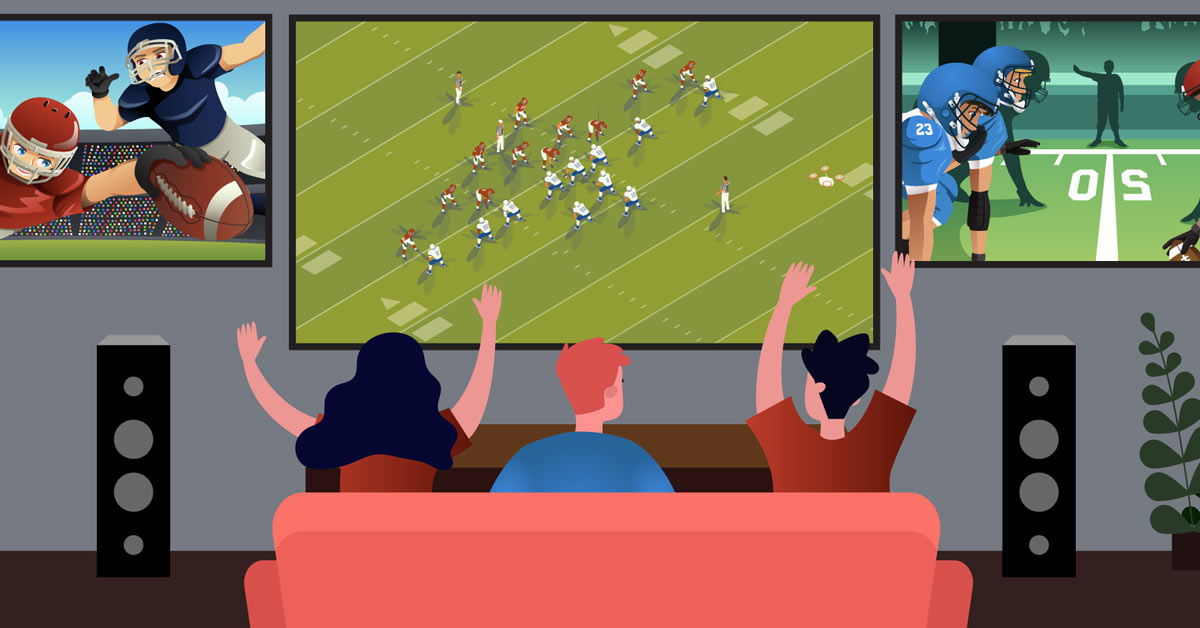
How to watch multiple games at the same time
From customizable YouTube Multiview to a multi-screen TV wall, build your ultimate game-day setup

In this article: We discuss YouTube's multiview feature, what's new for the 2026 football season — and for watching sports year-round (looking at you, March). We share our tips for watching multiple games at once, including...
- How to watch up to four games on one TV
- How to build an advanced home setup with multiple TVs
- Ways to get better TV sound during the big games
...plus, some tips to ensure your home network can support multiple game streams.
For diehard sports fans in 2026, the dream multi-game football experience is easier to set up than ever. YouTube now offers the Sunday Ticket out-of-market package — along with several ways to watch multiple games at once.
YouTube allows unlimited simultaneous game streams on different TVs or devices inside your home and has a feature called “multiview” that lets you watch two, three, or four games on one screen. The mix is now fully customizable — you can build your own combination of games for multiview.
And starting with the 2026 season, viewers who subscribe to both YouTube TV and NFL Sunday ticket can build a multiview with any of the channels or networks available in their subscription.

You could just have a game on the big screen, then one on laptop, phone, and so on, but at Crutchfield we like to aim higher — and free up our devices for our Fantasy lineups.
Crutchfield has helped customers put together sports-bar-esque home A/V setups for years. So, we're sharing some of what we've learned about choosing screens, placing them, getting the sound right, and building a network that can keep up.
Of course, a multi-game or multi-screen setup can be enjoyed year-round and for sports other than football — just think of college basketball in March!
Our experts weigh in
Two veteran Crutchfield A/V design specialists, Clarence and Norm, helped me think through what it takes to build a great multi-game setup. They shared their ideas for watching several games on a single screen or creating a full wall of TVs.

For decades, Crutchfield A/V designer Norm has helped plan and install TV and audio setups of all scopes and scale.
Our residential A/V design group has plotted out several multiple-screen setups for dens, living rooms, mancaves, pool houses, guest houses, garages, she sheds, you name it. (Our commercial A/V designers routinely create similar setups for bars and restaurants.) So, I turned to Clarence and Norm for advice.
One TV: get the most out of Multiview
“Multiview” is the feature on YouTube that had us buzzing the last few seasons here at Crutchfield. You can choose from pre-packaged combinations or build your own combo of two, three, or four games at once, divided across a single screen. “This is a game-changer for keeping up with multiple teams,” said veteran A/V Designer Clarence. “Today’s larger premium TVs have the depth and detail to pull it off — for many people, it might be all you need.”
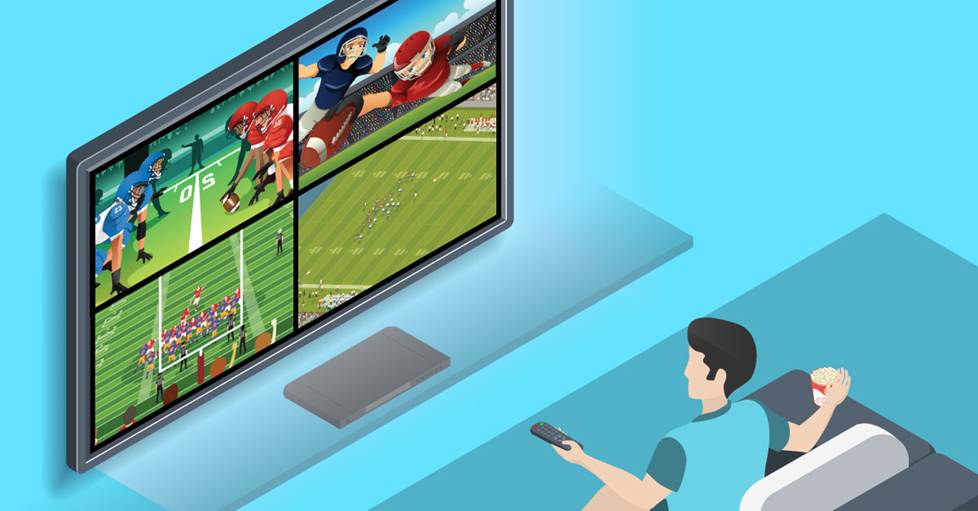
YouTube's "multiview" feature has been a big hit for football, basketball, and more — it lets you watch up to four games on one TV.
Multiview is delivered to your device as a single live feed, so it doesn't require your TV or streaming device to process four different video streams. "We moved that processing [to] YouTube’s servers," said YouTube TV's lead engineer German Cheung.
And while multiview is the big draw, YouTube has a few other tools that make football easier to follow a busy Sunday. You can check live stats and follow fantasy information, jump through their "Key Plays" feature to catch up on a game you missed, and use DVR features to save games for later.
A few things to consider
Of course, they can't all be touchdowns — there are still a few snags that I consider fumbles. First, there's the delay. Streaming sports can still lag behind traditional broadcasts, and even a 10- to 20-second delay is enough to get a text about a touchdown before you've seen it happen. The difference can be especially noticeable when you're watching a streamed game alongside a local network feed.
Then there's the hassle of switching sources. Local games integrate nicely into Multiview if you also have YouTube TV, but if you're watching Sunday Ticket without YouTube TV, local games are subject to blackout and won't appear as an option. And even when local games aren't the issue, you may want to jump to another sport, event, or show on cable, over the air, or another streaming service.
That's when streaming feels a little less seamless than the old days of flipping through channels. I know — first-world problem. Or maybe I'm just showing my age. Either way, it's another good reason to have multiple games going at once. So let's get to it!
How to set up and use multiview
A big-screen TV with the YouTube app and a Sunday football subscription gets you started. The multiview option is available on Smart TVs, Roku and Apple TV — YouTube says it's still not available on computers and phones for the 2026 season. (If you have YouTube TV, you can access the feature right now to test it out with other content.)
In the app, you start by choosing a live game. Then, you can select “watch in multiview.” You’ll be given a list of multiview options for two, three, or four game combinations. You'll alsob be given the option to "Build a Multiview" that lets you scroll through and add games one by one. (Again, with potential limitations for local games.)
You can choose which game audio you hear and which play-by-play captions you see. Use the arrows on your remote to highlight the game in multiview and a white border will surround it. It can take a second or two for the audio and captions to switch over.
If things get heated and you want to watch the highlighted game in full screen, you can hit "enter" or "select" on your remote. Then when it goes to commercial, the “back” button will bring up the multiview display again.
When choosing a TV, go big or go home
At Crutchfield, we carry TVs with optimal picture quality. So, on the field, coaches, players, uniform colors, yard, and line markers will remain distinct even when split up into smaller sections.
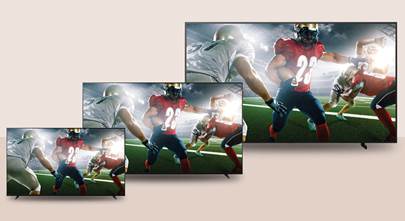
Still, to keep track of all the scores and stats, you’ll want to go as big as possible. And maybe even larger than you were thinking. Norm from our A/V group, who’s seen it all over his three decades of custom design and installation, warned us that “a 65-inch TV showing four games in YouTube’s 2x2 split, turns each 'screen' into roughly the size of a 32" TV.”
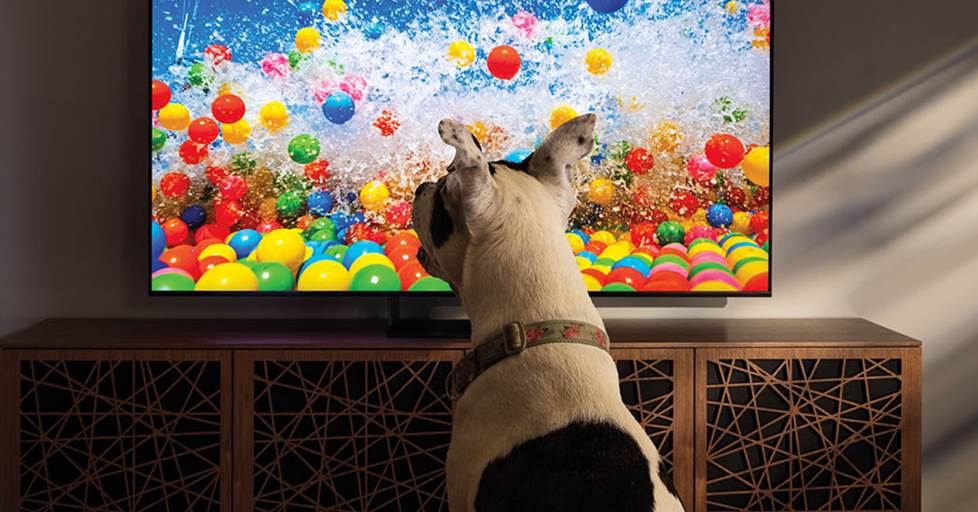
Sunday football often means a bright room, lots of small details, and multiple games sharing the screen. A bright, high-contrast screen like Sony's flagship Bravia 9 II RGB TV can make Multiview much easier to follow.
At standard viewing distances, he said that you could still follow the action on the field, “but reading the text crawl across the bottom of that image could get tough.” Most of our best TVs of the year offer options that are 70”, 75”, or even over 80”.
Want to go even bigger with Multiview? Consider a projector
The biggest TV we currently sell is 98" (well, there is one that's 115"), while many projector systems have screens that are 120" or larger. In multiview, that could nearly double the size of each individual game in Norm's rough estimate. Now we're talking!
Along with the projector itself, you’ll likely need a Roku or Apple TV. Some projectors have streaming capabilities, but I wouldn’t let that drive your decision over what works best for your room.
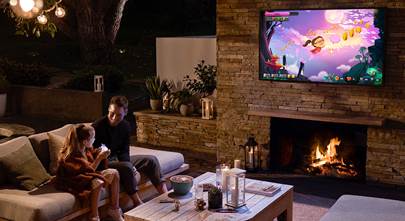
You’ll also probably need a screen. It’s tempting to just project onto a blank wall, but a dedicated screen can ensure a smooth, crisp image. A projector can also be an outdoor option for weeks where there’s good weather and a great slate of games. That’s one way to upgrade a cookout, get-together, or neighborhood block party.

Football and an outdoor projector screen can level up any fall get-together.
Multiple TVs: tips for building the ultimate setup
OK, time for the real deal — watching several games on different TVs. On an official Crutchfield A/V system design consultation, our specialists will cover way more than I can here. (And if you're planning something this ambitious, I strongly suggest you request a consultation before you get too far.)
But Clarence and Norm shared some general information that they thought would help anyone looking to build this dream football scenario.
"Measure and re-measure"
Like any DIY project, one of the first things you want to do is make sure you have enough space for what you’re trying to accomplish. You’ll want to measure the space on the wall where you’ll mount the TVs. And get a general idea of viewing distance.
Design around a central "main" screen
Norm said he’s designed and installed many of these multiscreen layouts and he finds that the sweet spot is three screens total. Everyone seemed to agree that it's ideal to have one larger TV as your main point of focus. For one, you have a primary TV for the big football game of the week.
“What I’ve found works best is a 70” or 85” as the main focus of the room with two 32” or 43” TVs directly above,” said Norm. “That seems to be the best balance between number of screens needed and the use of space in the room.”
We're not going to talk you out of four (or more) similar-sized TVs, if you really want a purpose-built multi-screen TV wall. Hey, that sounds pretty awesome. Just remember, it might be more functional to have a "centerpiece" for watching TV when you’re not using the other screens.
For that reason, I wouldn't cut corners on the main TV. You want a large screen with a picture that pops when you’re watching your team, or the game of the week. You could even use the YouTube multiview on the main screen and have two additional games on the other two TVs, for a total of six games.
TV placement tips
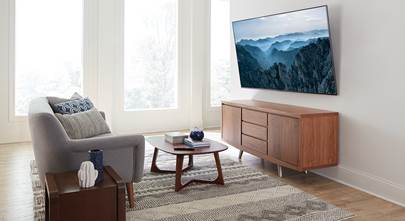
Make sure you have room to mount your main TV at the ideal viewing level and still have room to add smaller TVs. With a standard 8-foot ceiling, mounting the main TV at eye level usually works, even with the larger screen. The smaller TVs on top may require tilting wall mounts to point them towards the viewing area.
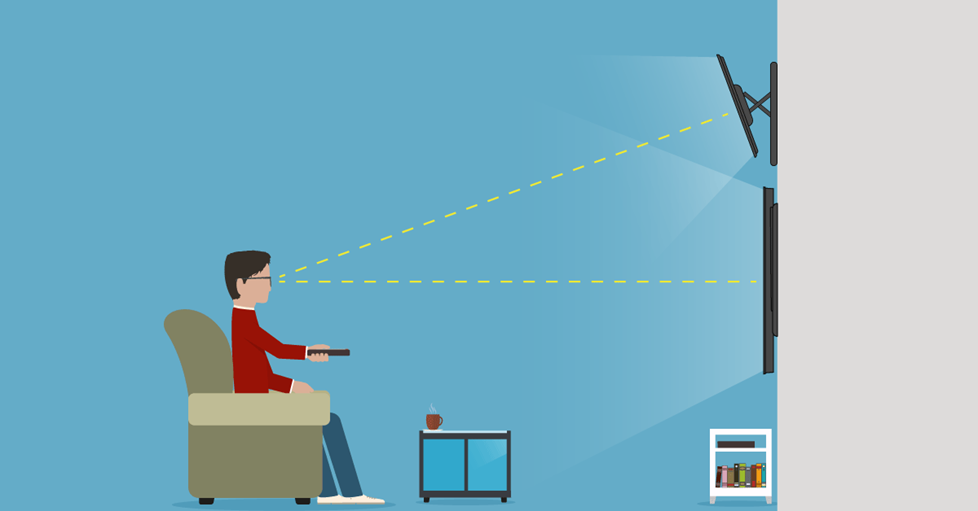
We've discovered that the most comfortable multi-screen setup has the main TV mounted at eye level and the smaller screens above, tilted down.
Norm said this setup takes up less room than mounting side by side and prevents people from having to move their heads around. “Glancing up and down with your eyes is much less taxing over the course of the three to seven hours you might be watching the afternoon games,” he said. Check out our guide to wall-mounting TVs for more details.
Streaming video players can make controls easier
Both A/V Designers thought using streaming video players like Roku or Apple TV would make life easier, strictly from a control point of view. You would need one streamer for each TV in your setup — so it does add cost. But it gives you a uniform set of controls, so every time you’re pulling up the YouTube app or selecting games, you know what to expect.
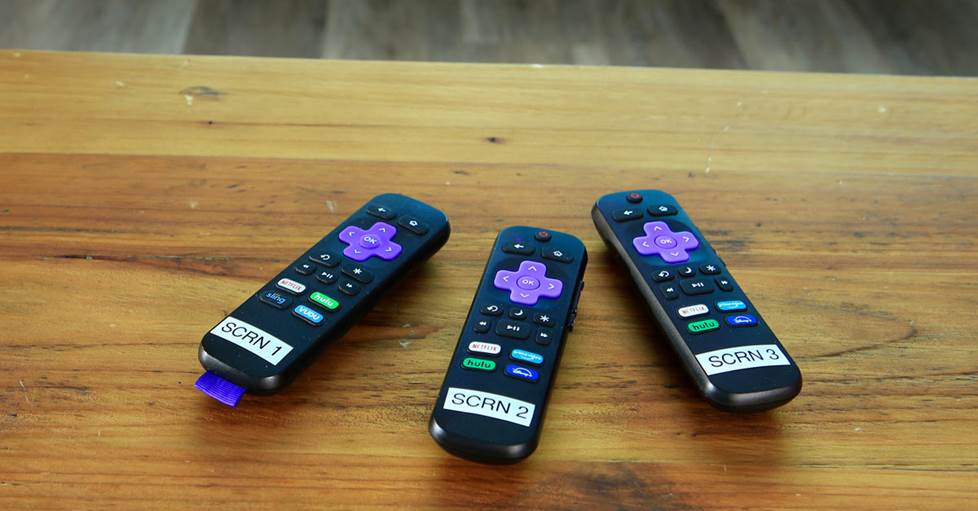
We recommend labeling the remotes for your individual streamers so that you can quickly figure out which screen each one operates.
Use the same brand of streamer for each — the exact same model if possible. That helps avoid confusion when you're trying to control things later. It's also helpful to label the remotes, so you can quickly see which screen or game it will control.
HDMI ins and outs
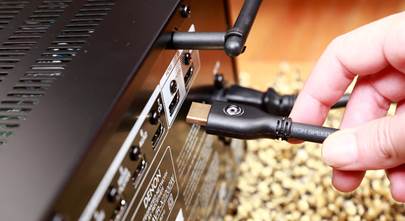
Clarence says that you’ll want to connect your streamer directly to the TV versus connecting directly to a sound system (if you have one). Since the streamer takes up one of the HDMI inputs, you'll want to make sure the main TV has enough HDMI ports left over for anything else you need to connect. Most of the larger TVs that we offer have plenty of inputs.
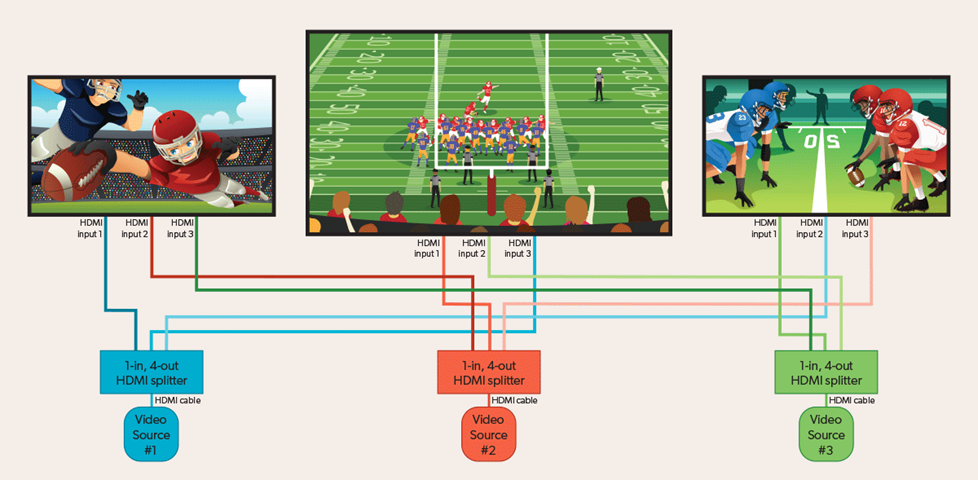
Multiple TVs using HDMI splitters can lead to complex installations, but make everything easier to control on gameday.
HDMI splitters offer the ultimate multiscreen control
Norm has done a few cost-no-object multi-TV setups for people here in the central Virginia area. He said the installation is more involved but these setups are much easier to use on game day. He uses multiple HDMI splitters to allow for quick shuffling between the games on each screen.
In his three-TV scenario, he said that the TVs should all be the same brand. The main TV needs four HDMI ports for connecting the streaming video player, a series of three HDMI splitters, and a sound system. The two smaller TVs need three HDMI ports each to connect to each of the three splitters.
“When you wire those three HDMI splitters in a particular sequence,” he said, “you can have the screens — and the games on them — rotate every time you hit the 'Source' button on the primary TV.”
Since they are all the same brand of TV, hitting the "Source" button on the main remote would change the source on each TV. So, if one of the secondary games becomes a barn burner, you can move it to the big TV. That's good for when the hyped game falls flat or your team doesn’t show up.
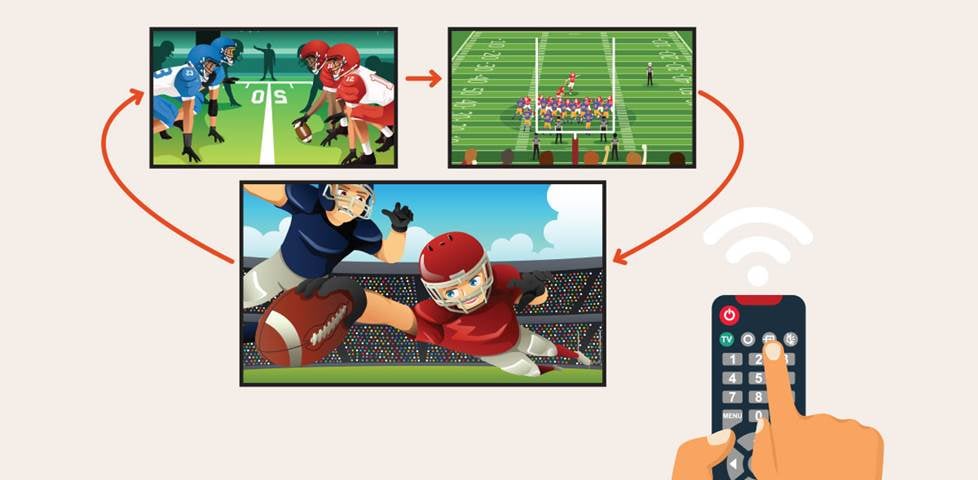
Connected properly and using three TVs of the same brand, you can press the source button on the main remote and rotate the games to different screens
Sound that lives up to the on-screen action
No matter what setup you ultimately choose, you want to consider your sound options. Don’t be that person who invites everyone over to watch the games and has them straining to hear the play-by-play. Here are 5 ways to improve TV sound.
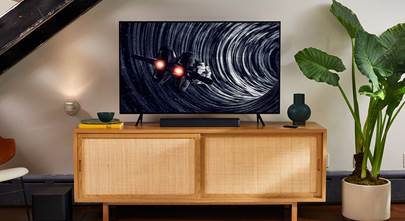
A full home theater system would give you the most lifelike sound. But in either TV setup, I think you could get away with a sound bar if that fits best in your room. Choose one with a separate subwoofer to get the full effect of the crowd atmosphere and on-field hits.
In a three-TV setup, you’d probably only want audio to come from the main TV. The two smaller TVs would remain silent. “In that case,”Clarence said, “you can use either an eARC enabled soundbar or an eARC enabled surround sound receiver for the big TV.”
He pointed out that if you did want the ability to play audio from either of the two smaller TVs, you’re more likely to have luck with a receiver. But regardless of the setup, there will be several cables and wires involved. You'll want to devise a solid cable management plan to keep it all looking neat.
You need a strong home network for all this streaming
Whenever more than one stream is going at the same time, it can really eat up bandwidth. You can't control much about the internet strength in your area. But there are things you can do inside the house to beef up your network.
Our 4K video streaming checklist might help. YouTube isn’t streaming any of the games in 4K — at least not yet. But the basic rule applies: the more streaming you want to do, the better the network (and faster the connection) you need. Particularly if you have phones, computers, and other devices using the same network.
We recommend at least 20-25 megabits (Mb) per second for streaming HD on busy networks— but that's bare minimum these days. If you’re talking multiple streams, you’ll want considerably more. And thinking of everything that might be on your wireless network: computers, phones, other TVs, Sonos, or a security system.
So, a wired Ethernet connection will give you the strongest, fastest, most reliable network connection and won’t interfere with any other streams in your home. But of course, that’s not always realistic. Depending on where your router is, Wi-Fi might be your only option. If you have trouble, see our tips for solving Wi-Fi and streaming problems.
A new wireless router or Wi-Fi signal booster may be also in order. Newer Wi-Fi versions like 7 and 6E are extremely fast and effective. And some routers let you put streaming video first in line for available bandwidth. For more information, read our Wireless router buying guide.
Questions?
I know I've given you a lot to take in — but the results could be extra rewarding on Sundays and beyond. So don't hesitate to contact us so we can help you come up with a game plan.
And as always, free lifetime tech support is included with every Crutchfield purchase.


Comments (0)