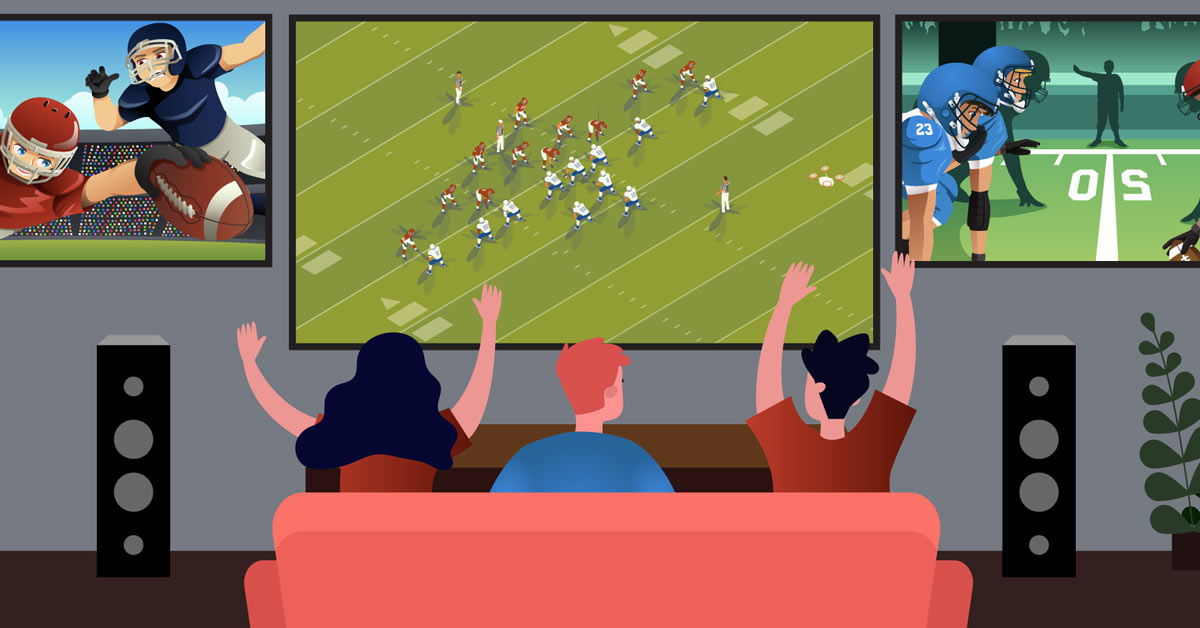
How to watch several games at once with YouTube multiview
Expert tips for watching sports on a single screen or on multiple screens

In this article: We discuss YouTube's multiview feature for the 2026 football season, Olympics, and college basketball tournament. We share our tips for watching multiple games at once, including...
- How to watch up to four games on one TV
- Advanced setups with multiple TVs
- Ways to step up your game with better TV sound
...plus, some tips to ensure your home network can support multiple game streams.
For diehard sports fans, the dream "all-you-can-handle" multi-game football experience is easier to set up. YouTube took over the Sunday Ticket out-of-market package two seasons ago, to much fanfare and success. And there are now several ways to watch a multiple games at once.
YouTube allows unlimited simultaneous game streams on different TVs or devices and has a feature called “multiview” that lets you watch two, three, or four games on one screen. And in 2026, the mix is now fully customizable — you can build your own combination of games for multiview.
(Update: In April 2026, YouTube TV launched "fully customizable multiview," opening up the feature to channels outside of sports. Variety wrote that subscribers, "will be able to build a multiview with any of the networks available as part of their subscription, including add-ons such as NFL Sunday Ticket." We'll update this article with more details once we've seen how it works in practice.)

You could just have a game on the big screen, then one on laptop, phone, and so on, but at Crutchfield we like to aim higher — and free up our devices for our Fantasy lineups.
Other streaming services offer similar features for sports (and many got their first taste of multiview for the Olympics on Peacock). So, it’s become a lot easier to have multiple games and events going at once, right in your living room.
Crutchfield has helped customers put together sports-bar-esque home AV setups for years. But there’s a renewed buzz and curiosity around the topic now, so we wanted to share some of our tips, pointers, and guidance. Of course, a multi-game or multi-screen setup can be enjoyed year-round and for sports other than football — just think of March!
Last year, both HBO Max and Xfinity debuted their own multiview features for the men's and women's college basketball tournament. (I much preferred the experience on Xfinity and YouTube TV, because they had up to four simultaneous games while HBO Max only had three — but we'll see what the 2026 tourney brings!
Our experts give advice on multi-game setups
Two veteran Crutchfield A/V design specialists, Clarence and Norm, gave me some tips on getting the most out of YouTube's unlimited game streams. They were happy to share their ideas for watching multiple games on a single screen and offered some great pointers for setting up the ultimate multi-game experience with three TVs.
But before we get too deep into those setups, I should give you some of our observations of watching football on YouTube going into season three — what’s worked and what we’ve snagged on.
Touchdowns (What we like)
Innovations: YouTube is a forward-thinking company when it comes to video content. And whether you think it's for better or worse, they’ve undoubtedly changed how we collectively watch TV. They've put a lot of creativity (and money) into getting live football right — like the ability to access and scroll through real-time Fantasy stats right on your TV screen.
Compatibility: There are few streaming services as ubiquitous as YouTube. It’s hard to find a video streaming device that doesn't have a dedicated YouTube app or offer a way to watch YouTube. (Just note that YouTube TV has a separate app.) The YouTube and YouTube TV apps are built into most Smart TVs and media streamers.
There’s even a YouTube app on most cable and satellite boxes these days. On the Google TV homescreen of our Sony 4K TVs, we noticed a standalone football section where you can access games quickly.

We've started to see a lot of football content show up on the Google TV homescreen on Sony TVs, like their flagship 77" MASTER Series A95L.
That gives you a lot of options as you're shopping or incorporating gear you already own into your setup.
Potential fumbles (snags we hit that may bother you)
Delay: Since streaming sports have become more the norm, football fans — and gamblers — often lament the fact that they can be well behind traditional broadcasts, which get closer to real time. Variety reported a delay between 10 to 20 seconds for football on YouTube in 2024 — and it seemed to be about the same last season. That doesn't seem long, but it's annoying to receive texts reacting to key plays I hadn't seen yet. And the delay can feel amplified if/when you’re watching alongside with the local network feed.
Switching sources: Speaking of the network feed, that brings up my main beef with streaming sports — flipping back and forth between different sources. We’ve found out that local games are really well integrated into multiview if you also have YouTube TV. But if you choose the option without YouTube TV, local games are subject to blackout — and don’t appear as an option.
And even if you don't care about local games, there may be other reasons you'd want to watch something else. Like there's another sport, event, or show on cable, over the air, or on another streaming service. But whenever you have to leave one platform for another, it’s never as seamless as the “old days” of flipping from channel to channel on cable.
I know — that's a first-world problem. Or maybe I'm just showing my age. Either way, it is yet another reason to have multiple games going at once, so let’s get to it!
About Crutchfield's A/V design experts
Our residential A/V design group has plotted out several multiple-screen setups for customer’s homes in the past. (And Crutchfield commercial A/V designers routinely create them for bars and restaurants.) We’ve designed these setups for dens, living rooms, mancaves, pool houses, guest houses, garages, she sheds, you name it.

For decades, Crutchfield A/V designer Norm has helped plan and install TV and audio setups of all scopes and scale.
In fact, if you think a multi-TV setup is something you really might want to try, I strongly suggest that you request a Crutchfield A/V Design consultation before you get too far.
Tips for a single-TV setup with multiview
“Multiview” is the feature on YouTube that had us buzzing the last two football seasons here at Crutchfield. You can choose from pre-packaged combinations or build your own combo of two, three, or four games at once, divided across a single screen. “This is a game-changer for keeping up with multiple teams,” said veteran A/V Designer Clarence. “Today’s larger premium TVs have the depth and detail to pull it off.”
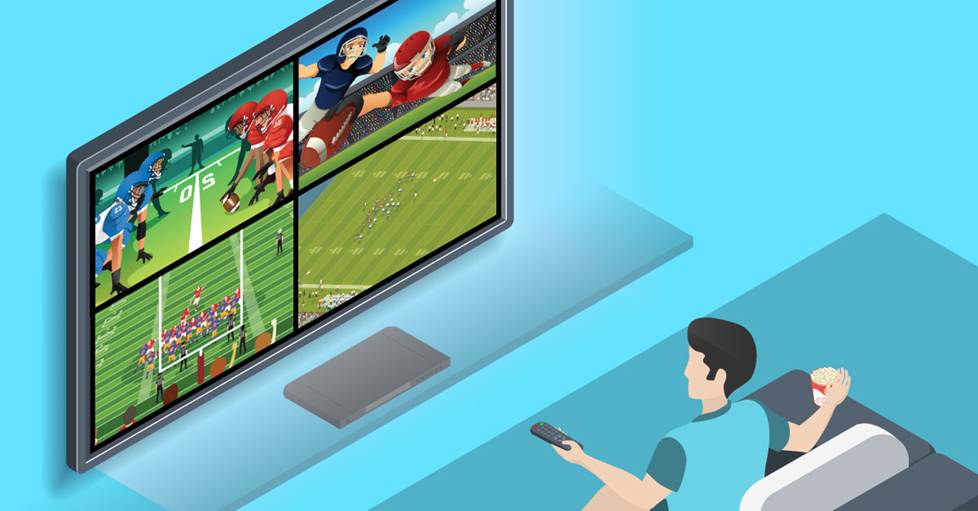
YouTube's "multiview" feature has been a big hit for football, basketball, and more — it lets you watch up to four games on one TV.
In other words, you can better see and follow the separate games than you could in the old-school "picture in picture" display. And it doesn't require the extra bandwidth or processing of added streams (or screens). "We moved the processing [to] YouTube’s servers," said YouTube TV's lead engineer German Cheung, so that your device only sees a single live feed for multiview.
How to set up and use multiview
A big-screen TV with the YouTube app and a Sunday football subscription gets you started. The multiview option is available on Smart TVs, Roku and Apple TV — YouTube says it's still not available on computers and phones for the 2025 season. (If you have YouTube TV, you can access the feature right now to test it out with other content.)
In the app, you start by choosing a live game. Then, you can select “watch in multiview.” You’ll be given a list of multiview options for two, three, or four game combinations. You'll alsob be given the option to "Build a Multiview" that lets you scroll through and add games one by one. (Again, with potential limitations for local games.)
You can choose which game audio you hear and which play-by-play captions you see. Use the arrows on your remote to highlight the game in multiview and a white border will surround it. It can take a second or two for the audio and captions to switch over.
If things get heated and you want to watch the highlighted game in full screen, you can hit "enter" or "select" on your remote. Then when it goes to commercial, the “back” button will bring up the multiview display again.
When choosing a TV, go big or go home
At Crutchfield, we carry TVs with optimal picture quality. So, on the field, coaches, players, uniform colors, yard, and line markers will remain distinct even when split up into smaller sections.
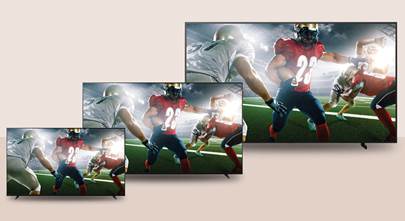
Still, to keep track of all the scores and stats, you’ll want to go as big as possible. And maybe even larger than you were thinking. Norm from our A/V group, who’s seen it all over his three decades of custom design and installation, warned us that “a 65-inch TV showing four games in YouTube’s 2x2 split, turns each “screen” into roughly the size of a 32” TV.”
At standard viewing distances, he said that you could still follow the action on the field, “but reading the text crawl across the bottom of that image could get tough.” Most of our best TVs of the year offer options that are 70”, 75”, or even over 80”.
A projector to take your game — and games — to the next level
The biggest TV we currently sell is 98", while many projector systems have screens that are 120" or larger. In multiview, that could nearly double the size of each individual game in Norm's rough estimate. Now we're talking!
Along with the projector itself, you’ll likely need a Roku or Apple TV. Some projectors have streaming capabilities, but I wouldn’t let that drive your decision over what works best for your room.
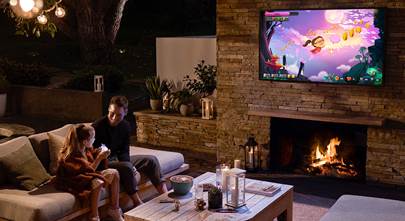
You’ll also probably need a screen. It’s tempting to just project onto a blank wall, but a dedicated screen can ensure a smooth, crisp image. A projector can also be an outdoor option for weeks where there’s good weather and a great slate of games. That’s one way to upgrade a cookout, get-together, or neighborhood block party.

Football and an outdoor projector screen can level up any fall get-together.
Tips for a multiple TV setup
OK, time for the real deal — watching several games on different TVs. On an official Crutchfield A/V system design consultation, our specialists will cover way more than I can here. But Clarence and Norm shared some general information that they thought would help anyone looking to build this dream football scenario.
"Measure and re-measure"
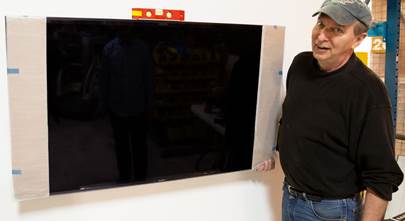
Like any DIY project, one of the first things you want to do is make sure you have enough space for what you’re trying to accomplish. You’ll want to measure the space on the wall where you’ll mount the TVs. And get a general idea of viewing distance.
Design around a central "main" screen
Norm said he’s designed and installed many of these multiscreen layouts and he finds that the sweet spot is three screens total. Everyone seemed to agree that it's ideal to have one larger TV as your main point of focus. For one, you have a primary TV for the big football game of the week.
“What I’ve found works best is a 70” or 85” as the main focus of the room with two 32” or 43” TVs directly above,” said Norm. “That seems to be the best balance between number of screens needed and the use of space in the room.”
It’s also a more functional layout for when you’re not using the other screens. For that reason, I wouldn't cut corners on the main TV. You want a large screen with a picture that pops when you’re watching your team, or the game of the week. You could even use the YouTube multiview on the main screen and have two additional games on the other two TVs, for a total of six games.
TV placement tips
Just make sure you have room to mount your main TV at the ideal viewing level and still have room to add smaller TVs. With a standard 8-foot ceiling, mounting the main TV at eye level usually works, even with the larger screen. The smaller TVs on top may require tilting wall mounts to point them towards the viewing area.
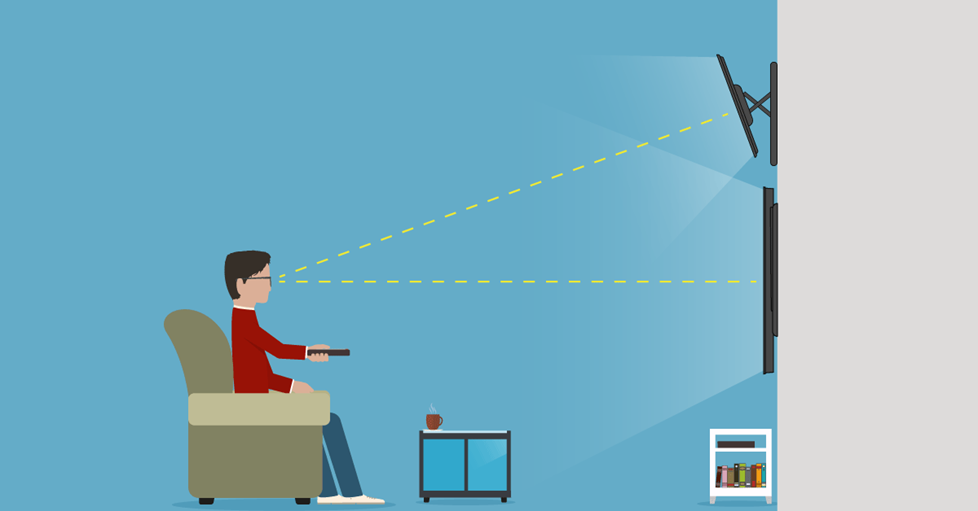
We've discovered that the most comfortable multi-screen setup has the main TV mounted at eye level and the smaller screens above, tilted down.
Norm said this setup takes up less room than mounting side by side and prevents people from having to move their heads around. “Glancing up and down with your eyes is much less taxing over the course of the three to seven hours you might be watching the afternoon games,” he said. Check out our guide to wall-mounting TVs for more details.
Streaming video players can make controls easier
Both A/V Designers thought using streaming video players like Roku or Apple TV would make life easier, strictly from a control point of view. You would need one streamer for each TV in your setup — so it does add cost. But it gives you a uniform set of controls, so every time you’re pulling up the YouTube app or selecting games, you know what to expect.
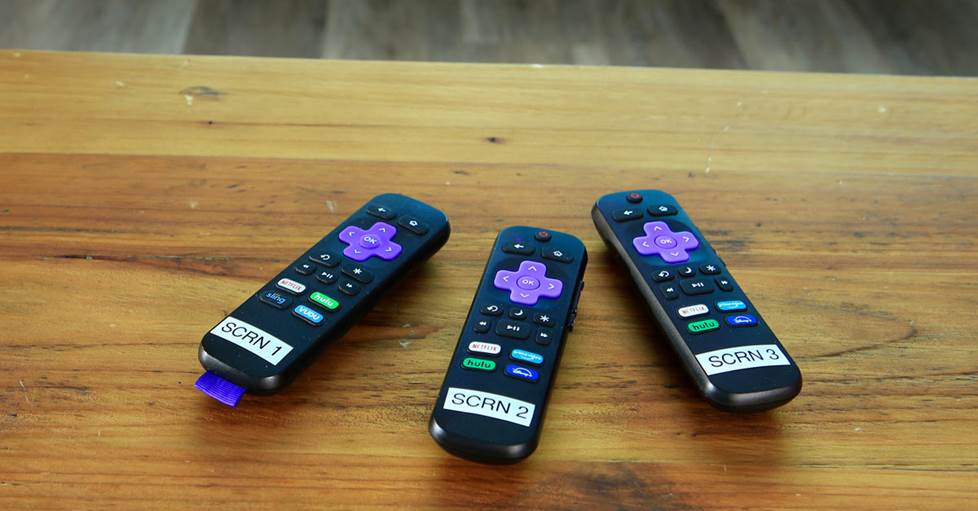
We recommend labeling the remotes for your individual streamers so that you can quickly figure out which screen each one operates.
Use the same brand of streamer for each — the exact same model if possible. That helps avoid confusion when you're trying to control things later. It's also helpful to label the remotes, so you can quickly see which screen or game it will control.
HDMI ins and outs
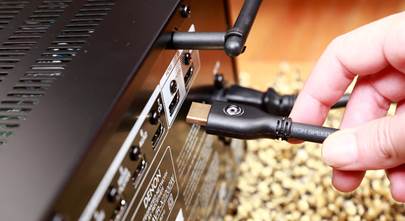
Clarence says that you’ll want to connect your streamer directly to the TV versus connecting directly to a sound system (if you have one). Since the streamer takes up one of the HDMI inputs, you'll want to make sure the main TV has enough HDMI ports left over for anything else you need to connect. Most of the larger TVs that we offer have plenty of inputs.
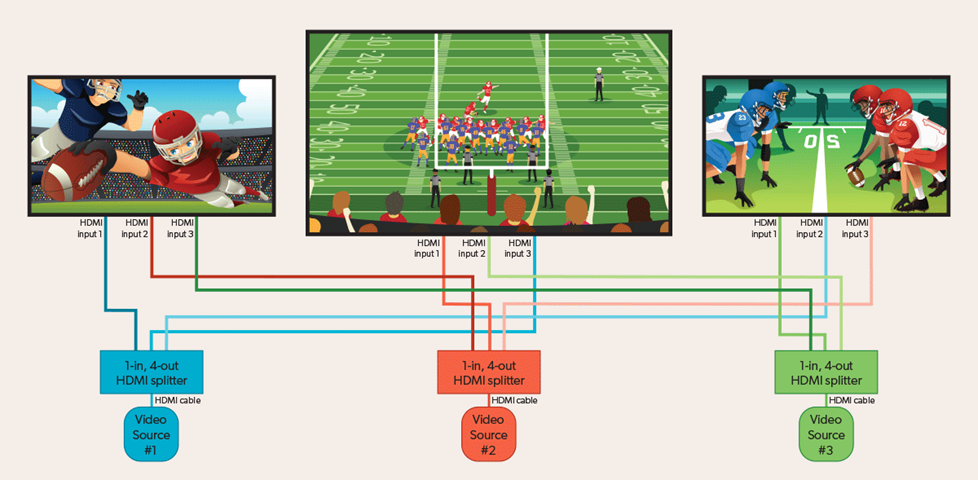
Multiple TVs using HDMI splitters can lead to complex installations, but make everything easier to control on gameday.
HDMI splitters offer the ultimate multiscreen control
Norm has done a few cost-no-object multi-TV setups for people here in the central Virginia area. He said the installation is more involved but these setups are much easier to use on game day. He uses multiple HDMI splitters to allow for quick shuffling between the games on each screen.
In his three-TV scenario, he said that the TVs should all be the same brand. The main TV needs four HDMI ports for connecting the streaming video player, a series of three HDMI splitters, and a sound system. The two smaller TVs need three HDMI ports each to connect to each of the three splitters.
“When you wire those three HDMI splitters in a particular sequence,” he said, “you can have the screens — and the games on them — rotate every time you hit the 'Source' button on the primary TV.”
Since they are all the same brand of TV, hitting the "Source" button on the main remote would change the source on each TV. So, if one of the secondary games becomes a barn burner, you can move it to the big TV. That's good for when the hyped game falls flat or your team doesn’t show up.
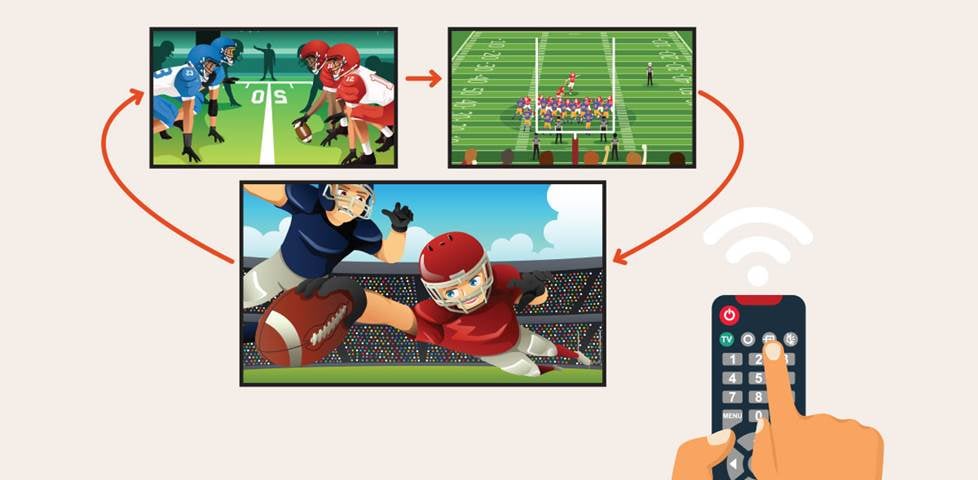
Connected properly and using three TVs of the same brand, you can press the source button on the main remote and rotate the games to different screens
Sound that lives up to the on-screen action
No matter what setup you ultimately choose, you want to consider your sound options. Don’t be that person who invites everyone over to watch the games and has them straining to hear the play-by-play. Here are 5 ways to improve TV sound.
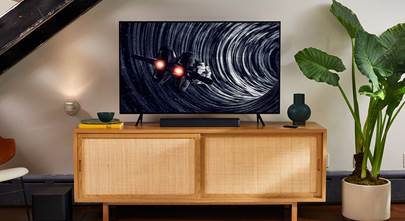
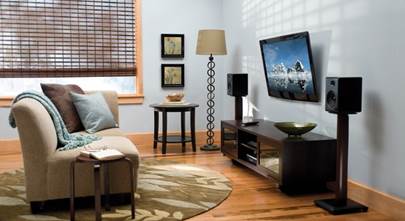
A full home theater system would give you the most lifelike sound. But in either TV setup, I think you could get away with a sound bar if that fits best in your room. Choose one with a separate subwoofer to get the full effect of the crowd atmosphere and on-field hits.
In a three-TV setup, you’d probably only want audio to come from the main TV. The two smaller TVs would remain silent. “In that case,”Clarence said, “you can use either an eARC enabled soundbar or an eARC enabled surround sound receiver for the big TV.”
He pointed out that if you did want the ability to play audio from either of the two smaller TVs, you’re more likely to have luck with a receiver. But regardless of the setup, there will be several cables and wires involved. You'll want to devise a solid cable management plan to keep it all looking neat.
You need a strong home network for all this streaming
Whenever more than one stream is going at the same time, it can really eat up bandwidth. You can't control much about the internet strength in your area. But there are things you can do inside the house to beef up your network.
Our 4K video streaming checklist might help. YouTube isn’t streaming any of the games in 4K — at least not yet. But the basic rule applies: the more streaming you want to do, the better the network (and faster the connection) you need. Particularly if you have phones, computers, and other devices using the same network.
We recommend at least 20 megabits (Mb) per second for streaming HD on busy networks. If you’re talking multiple streams, you’ll want considerably more. A wired Ethernet connection will give you the strongest, fastest, most reliable network connection and won’t interfere with any other streams in your home.
But of course, that’s not always realistic. Depending on where your router is, Wi-Fi might be your only option. If you have trouble, see our tips for solving Wi-Fi and streaming problems.
A new wireless router or Wi-Fi signal booster may be also in order. Newer Wi-Fi versions like 7 and 6E are extremely fast and effective. And some routers let you put streaming video first in line for available bandwidth. For more information, read our Wireless router buying guide.
Questions?
I know I've given you a lot to take in — but the results could be extra rewarding on Sundays and beyond. So don't hesitate to contact us so we can help you come up with a game plan.
And as always, free lifetime tech support is included with every Crutchfield purchase.




Comments (0)