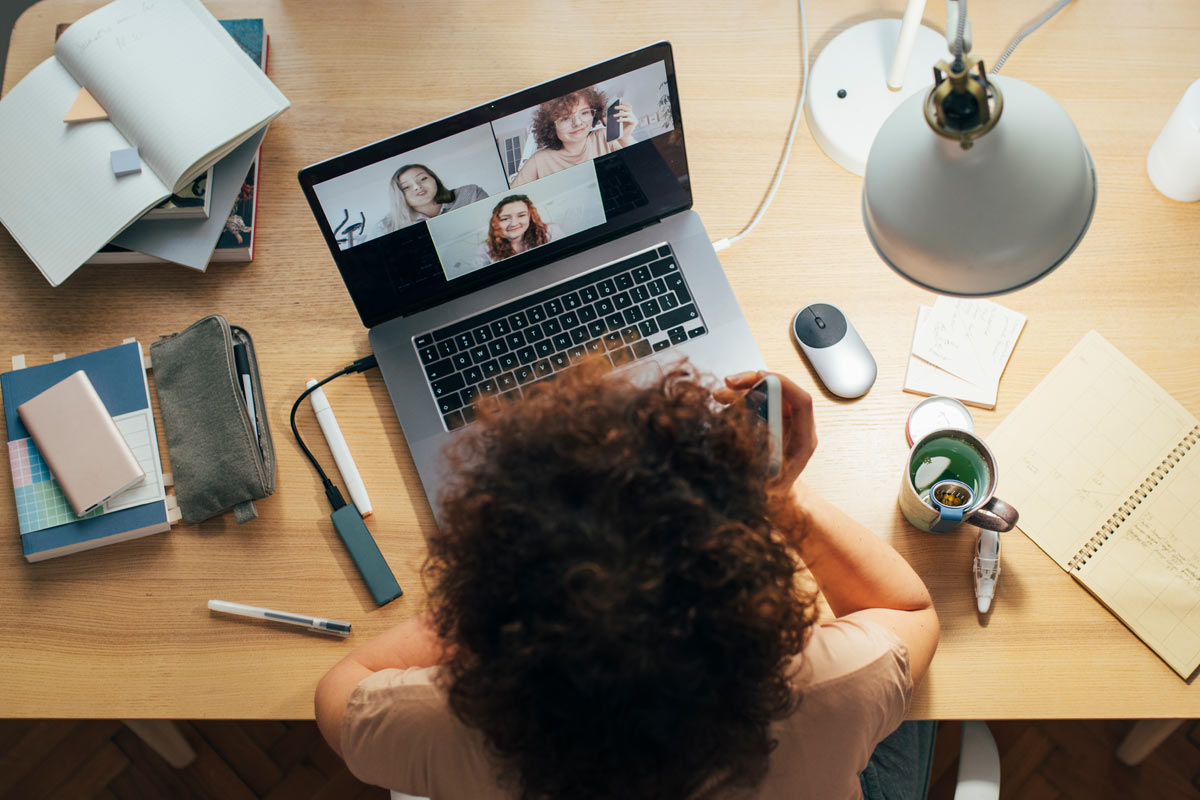
5 tips for improving your Zoom meetings
How to get better audio and video quality in your next video conference

In this article: we cover the different ways you can improve your video conferencing, including:
We understand Zoom fatigue. Even if we use Microsoft Teams, or Skype, or some other platform. We use it for business meetings. Teachers use it. Students use it.
We used Zoom for an extended family get-together over the winter holidays, and made the mistake of not setting an agenda or designating a moderator. It was like herding cats. No one listened, everyone talked. Unless everyone was listening while no one talked. And all we could see was the top of Aunt Mae’s head.
But now that most of us have figured out how to successfully join a video call, we have new questions. Why do we sound and look so bad? And what can we do about it?
How can I look and sound better on Zoom?
My friend is an English professor at a university in Maryland. When I told him I was writing an article about Zoom call quality, he described a recent class he recorded in Zoom, and watched afterward.
“I was in an upstairs room with dim lights,” he said. “When I looked back at the recording, my face was completely in shadow and I was wearing a winter hat. I looked like a serial killer in a movie.”
And nothing quite compliments that look like the tinny sound of your laptop’s built-in microphone. It's a textbook example of how not to present yourself in your next video call.
But solutions don’t have to be super-complicated or expensive. Below are some tips that will have you looking and sounding better in your video calls in short order.
Check up on your WiFi
Embarrassing cut-outs and frozen frames are distracting. Your WiFi could be the culprit. Take a look at our wireless router buying guide for more information on what you’ll need for a better, stronger internet signal.
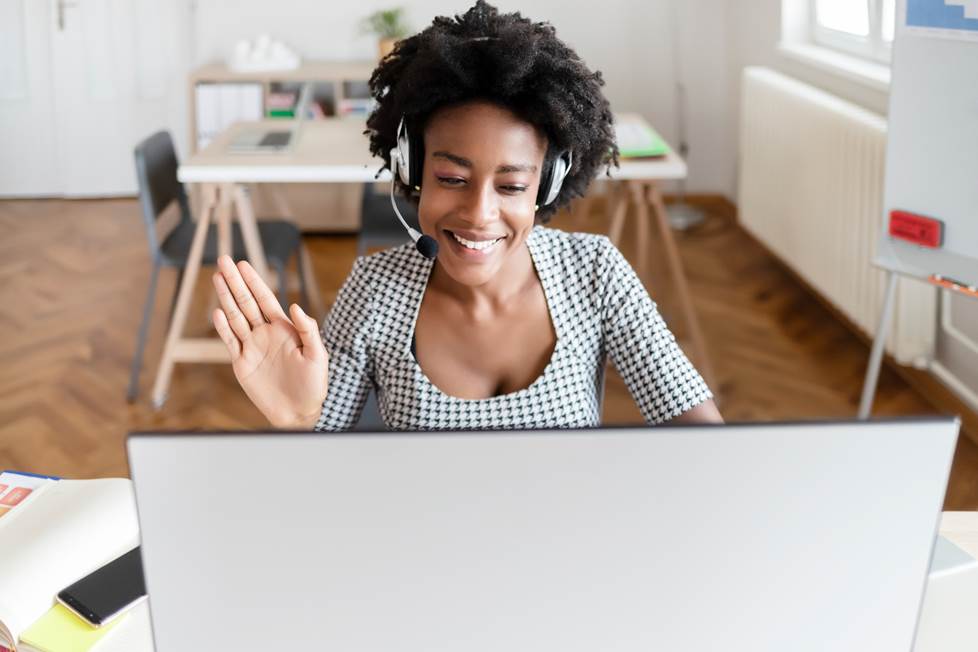
1. Set up your shot
Crutchfield’s practical hardware upgrades are mostly in the audio realm. But let’s talk about some video fixes that don’t involve any additional hardware at all.
Before you make your next call, get situated in your workspace and open your computer’s camera — you can even do this within most video conferencing platforms. How do you look?
If you don’t like what you see, make some adjustments. Face obscured in shadow? Try changing your location so that you face a window. Or add a light. The rule of thumb here is that you want light behind the camera, shining on you, not behind you shining on the camera.
Keep in mind that the most flattering angle is slightly above eye level. You might find your best angle by placing your laptop on a platform, like a stack of coffee-table books or whatever you have at hand that works.
Consider your background as well. My office tends to look cluttered, so sometimes I use a virtual background. Most platforms offer some background image presets, and the option to upload your own background image.
A background with a lot of outlines and skin-tone colors can mess with your appearance. You’ve probably noticed this effect — the background seems to overlap someone's headshot in places. It could be you, so don't forget to preview.
Check the video settings on your preferred conferencing platform (Zoom, Teams, Skype, etc.) Zoom, for example, has a “touch up my appearance” option you can select — think of it as a flattering airbrush for your video conference face.
In short, mess around in front of your camera until you like what you see. What you see is what they’ll get.
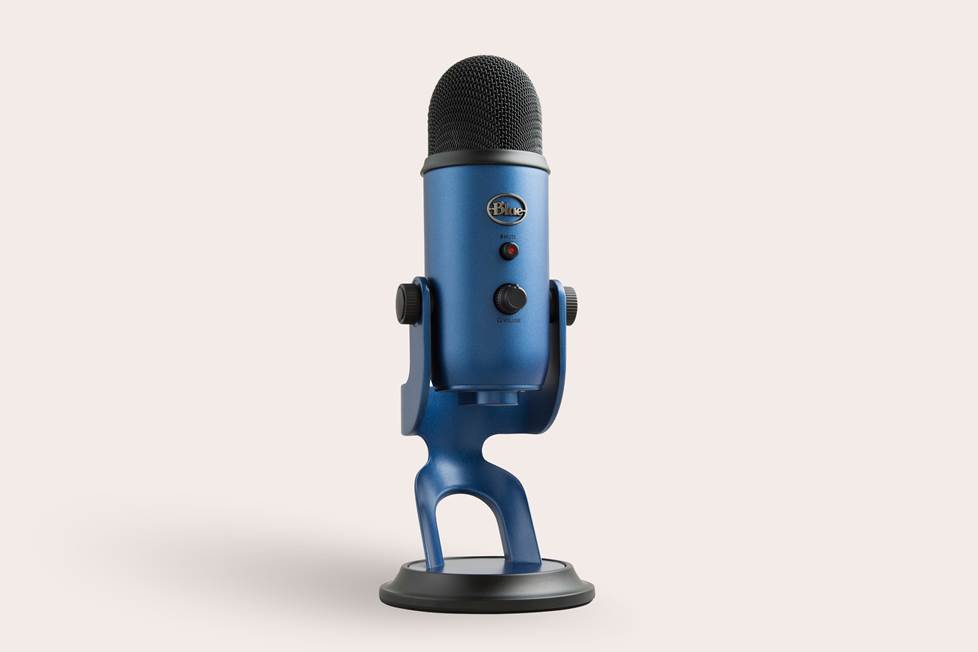
2. Upgrade your mic
On the audio side of things, there is only so much you can do with most built-in laptop mics. For the most part, they just aren’t designed to sound much better than your phone’s mic.
My work laptop has a Realtek microphone array. It’s a stereo setup. Sound enters the microphone array through two holes, one on either side of my camera. One thing I just noticed is that my camera’s sliding cover, when open, blocks the right side microphone. That can’t help my outgoing audio.
You can go into Zoom’s audio settings and “suppress background noise” at four different levels. But even when it’s working like it’s supposed to, my laptop’s built-in microphone sounds mediocre at best.
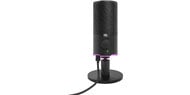
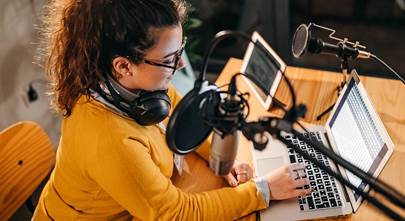
The easiest and least expensive way to sound better is to add an outboard USB mic. With this easy solution, you simply plug the mic into the USB port on your computer. The video below shows how adding a mic can significantly improve your sound quality, and covers some more advanced audio options which I'll discuss further down.
Some USB mics offer features like an onboard mute button and mic gain control. Gain lets you boost or reduce the mic’s signal level going into your computer. A headphone output with volume control is another helpful feature.
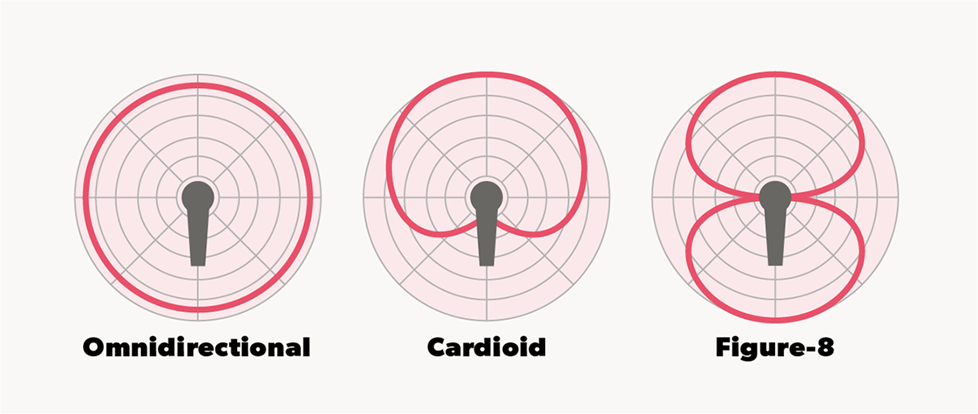
Different microphone polar patterns pick up sounds from different directions.
Some USB mics offer selectable polar patterns. An omnidirectional pattern is good for a meeting where some of the attendees are in the same room. If you're sharing a mic with a person sitting across from you, a figure-8 pattern picks up sound on opposite sides.
But for most applications where it’s just you sitting in front of your computer, a cardioid polar pattern works best since it captures sound coming from directly in front of it.
USB mics are condenser mics, which means they need power — which in this case comes from the USB connection itself. Condenser mics have a relatively wide frequency response, and are generally great for capturing voices.
Do I need a mic stand?
Some USB mics come with a built-in stand. If not, your situation will help you decide on a mic stand. A straight desktop stand can be very convenient, but if you want more flexibility, a boom stand might be what you’re looking for — they allow you to adjust vertical height and horizontal reach. Some mics, like the Shure SM7B, actually require a boom stand.
A desktop broadcasting boom stand with a spring-loaded articulated arm and built-in XLR cable is a nice solution.
3. Use a USB audio interface for even more flexibility
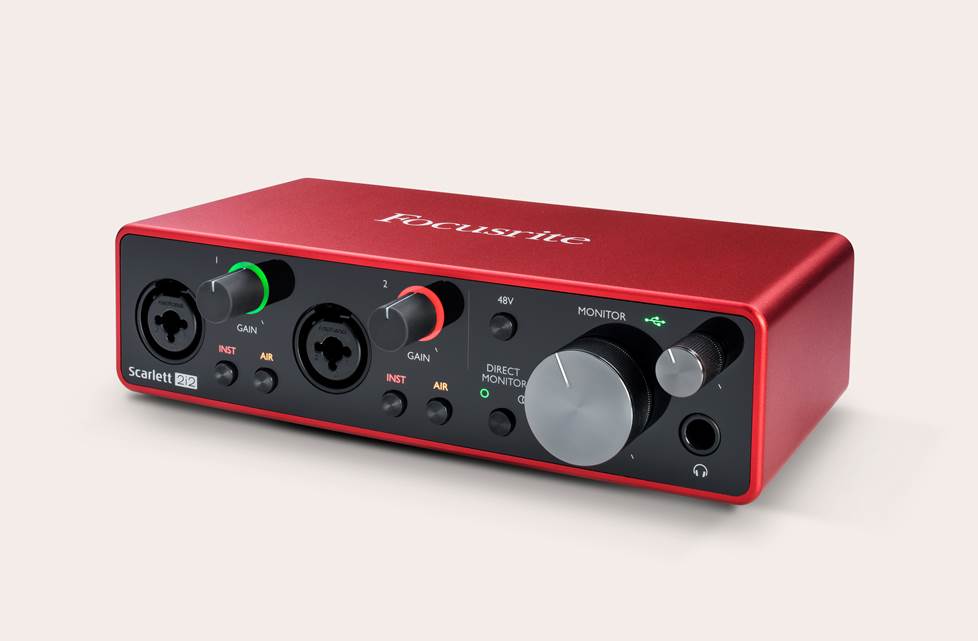
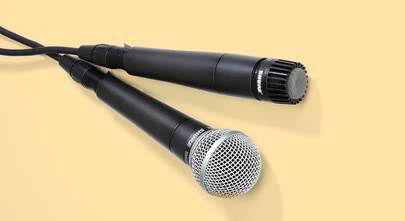
What if you’re making an important presentation to a client via Zoom? If you wanted more control and even better sound, you could opt for a USB audio interface. This lets you expand your microphone options to include dynamic mics like the Shure SM7B, which many consider to be the ultimate broadcasting microphone.
You’ll connect your mic to the interface using XLR and 1/4" inputs. XLR is a common 3-pin connection that carries a signal relatively free of electrical noise. It’s what recording studios use.
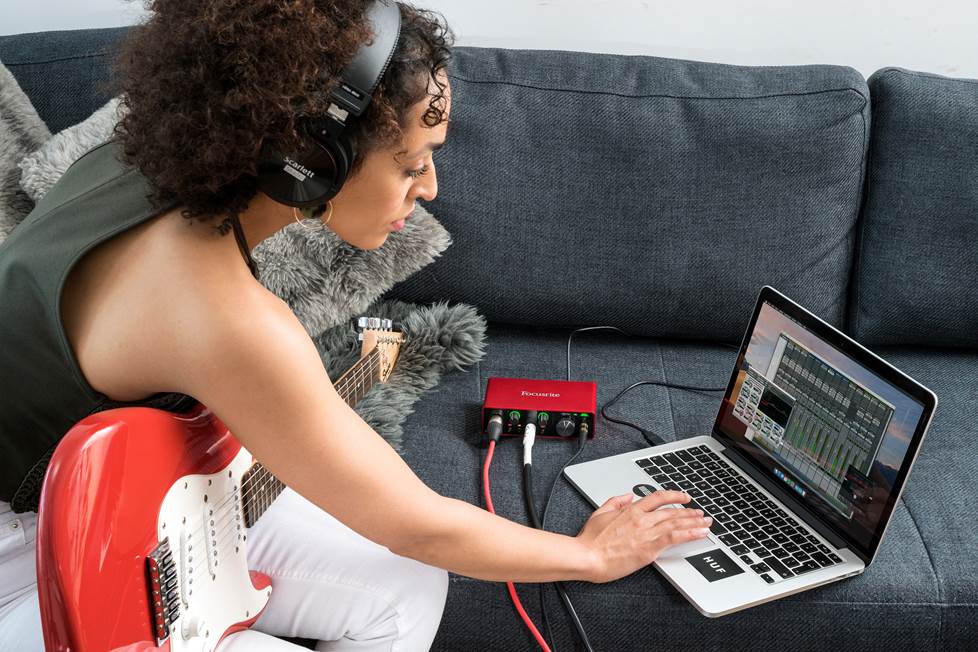
A USB interface can be helpful for music teachers and students because it gives you mic and instrument inputs.
USB audio interfaces give you some of the same features you’ll find on pricier USB mics, like built-in preamp gain control, a mute button, and headphone output and level control. They also supply the power you’ll need if you're using an XLR condenser mic.
On the back panel you’ll also find right and left audio outputs. These allow you to use external speakers to listen to audio. The digital-to-analog converter — or DAC — in the interface is most likely superior to the one in your computer. So you’ll not only get better sound from the speakers, but from the audio stream itself.
If you opt for an interface and XLR-connector mic, you’ll need an XLR cable. I look for cables with sturdy chuck-style connectors, like the Hosa Pro Series. It’s also a good idea to get the right length for your situation. In most desktop situations, a 25-foot cable would be overkill, and something to get tangled up in.
4. Try a good set of headphones
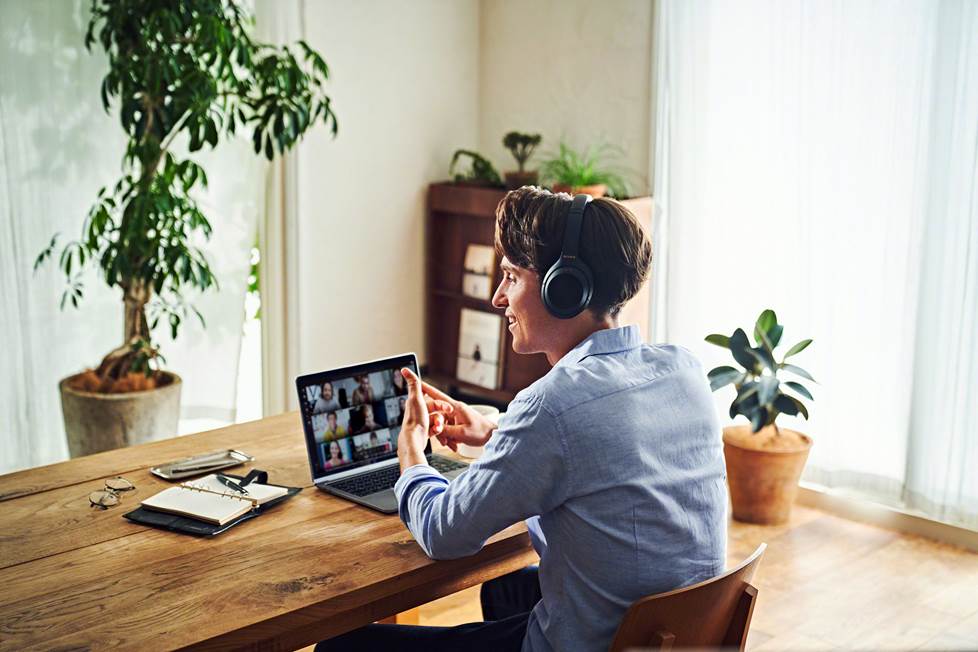
A not-quite outside-the-box solution for improving your outgoing and incoming audio is to use a headset, or headphones with a built-in mic. Gaming headsets like the JBL Quantum series offer a range of connections as you move up the line from wired to wireless.
The Quantum series mic is “voice-focused” by design. And when you lift it out of the way, it automatically mutes your voice — we all know how useful the mute function is in a Zoom context.
“Multi-point” headphones allow you to connect to more than one device at a time. Apple AirPods can do this, as can Sony’s popular WH-1000XM6 wireless noise-cancelling headphones.
That makes it easy to toggle back and forth between music, podcasts, videos, or phone calls — or a Zoom/Microsoft Teams meeting — without having to re-pair the headphones each time.
5. Try a set of powered desktop speakers
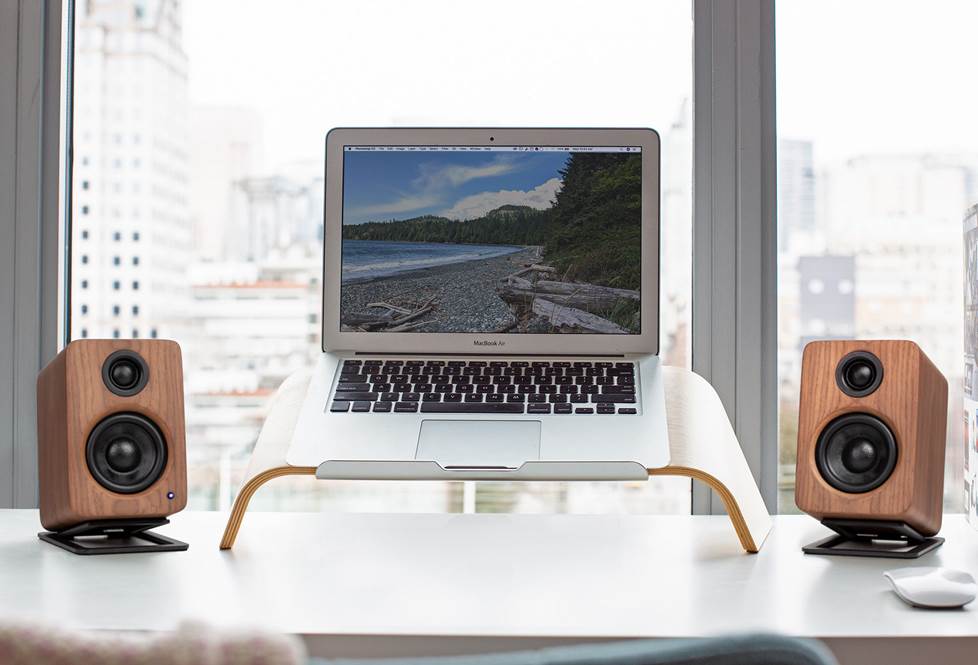
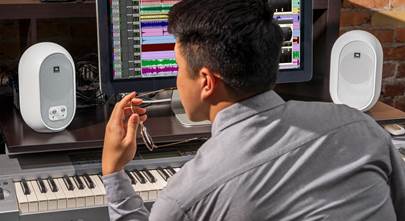
If you want to improve the sound you hear in a Zoom call without using headphones, you’ve got a lot of options. It’s amazing how far laptop and phone speaker technology has come, but still — it’s just not that great when compared to even the most humble desktop speakers. I use a pair of Mackie powered monitors in my office, and I think they sound fantastic.
Most computers will recognize most speakers and audio interfaces, so you can “plug and play.” But you may need to go into your video conferencing platform’s audio settings to select the speaker input or interface for sound.
Need some help?
Need help choosing the best setup for improving your video conference system? Contact us for recommendations. Our advisors can help you find the right gear for your situation and budget, and make sure you don't leave out any important pieces.
Free lifetime tech support is included with your Crutchfield purchase.


Comments (0)